Basically, all of the links on this page are affiliate links. I receive a commission (at no extra cost to you) if you make a purchase after clicking one of the affiliate links below. Read our Affiliate Link Policy for more information.
Parts I used
- Buy the AlienTek T90B (make sure it’s the B!) at Amazon
- Buy the AlienTek T90B (make sure it’s the B!) at AliExpress
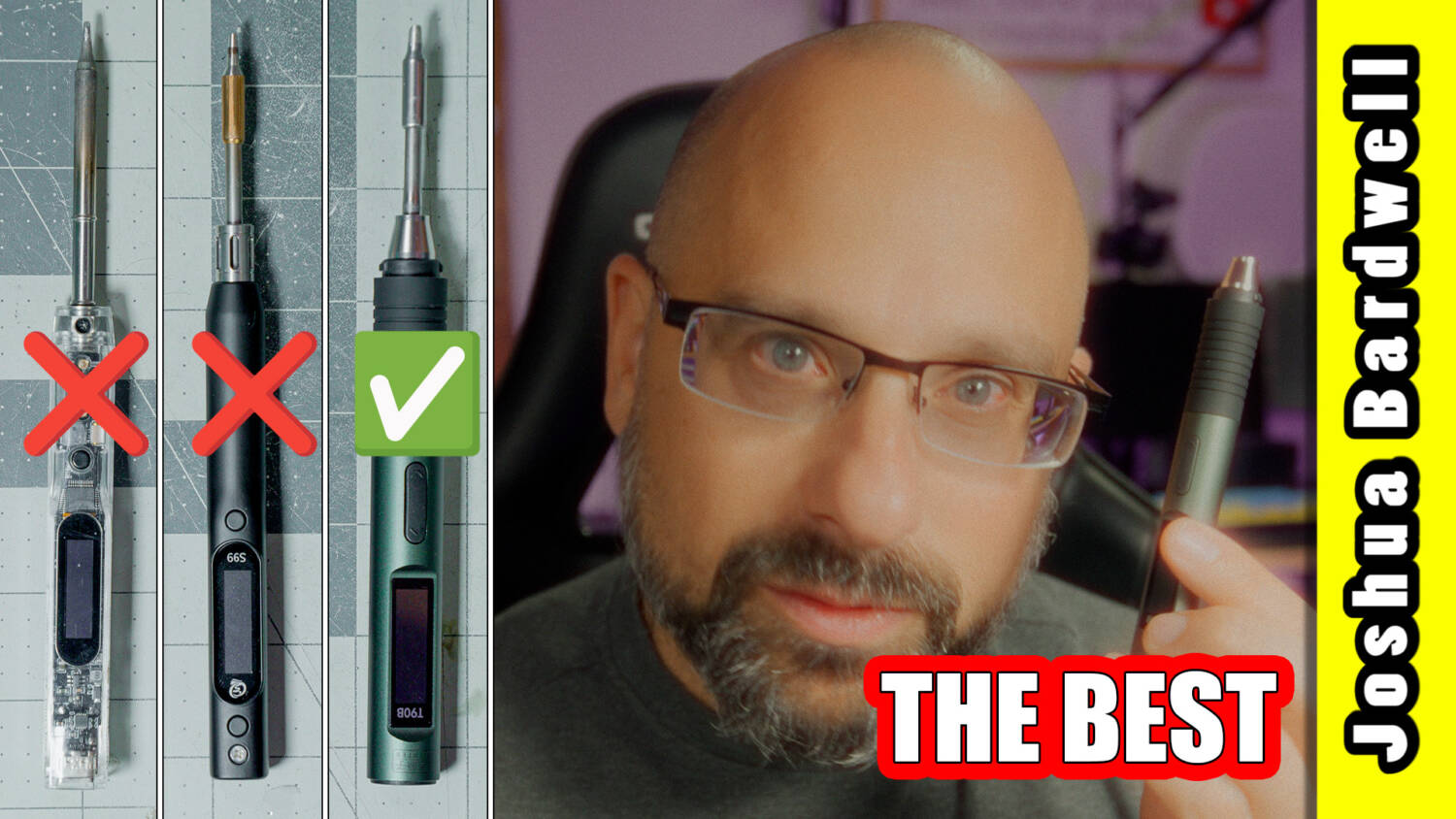
I know I’ve broken your heart before. I told you things, and I meant them when I said them. I thought they were true, but they turned out not to be. This time it’s different. This time I mean it: I really have found the perfect portable soldering iron: the AlienTek T90B. No hesitation, no regrets.
I’m always looking for ways to make my portable tool kit better, and the soldering iron is one of the most important parts of it. If you don’t have a soldering iron, you really can’t do drone repairs.
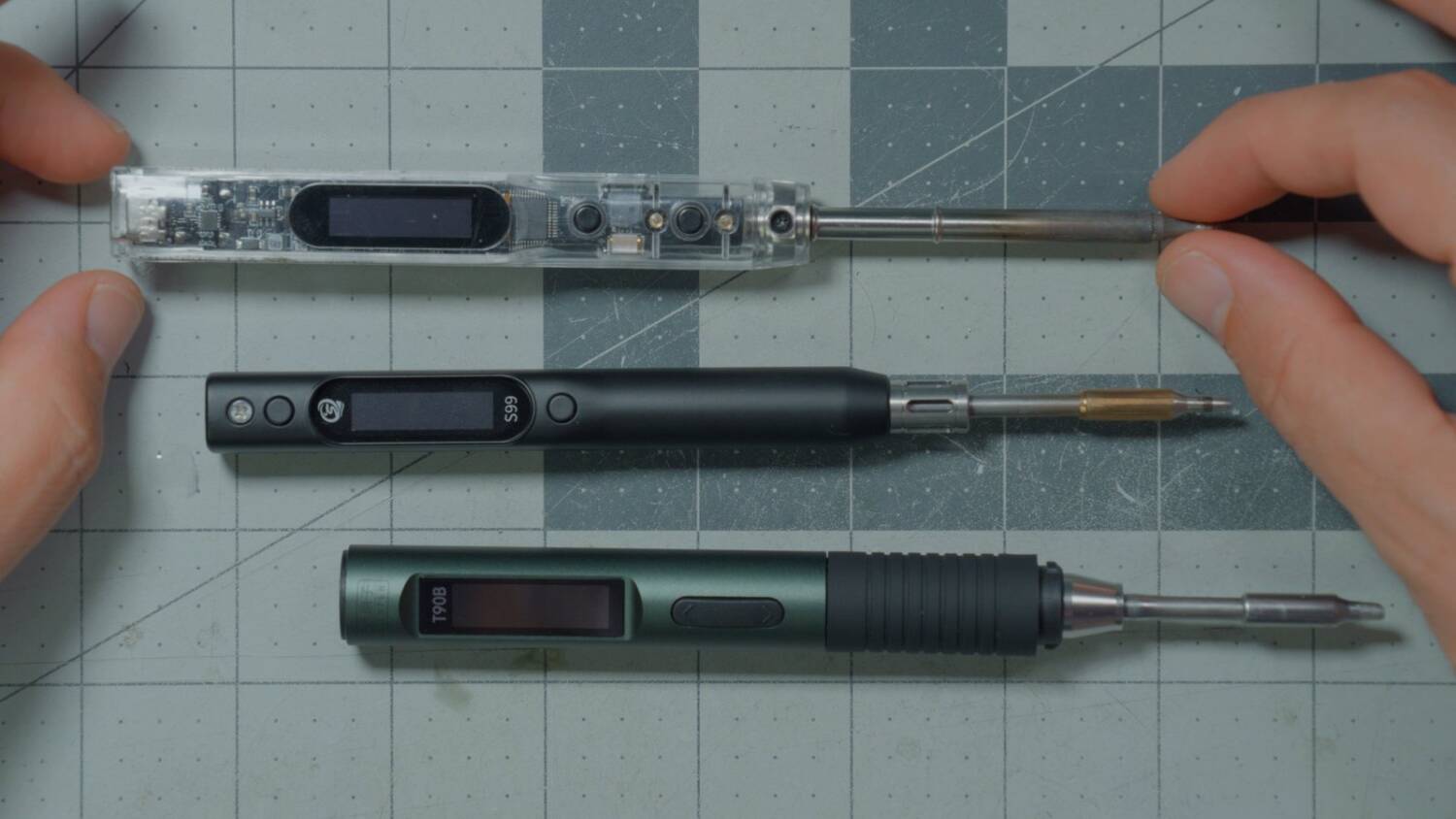
The venerable TS100 or TS101 has been a staple for a long time, but I have never loved it. (Mine isn’t actually that exact iron. I think it’s from Sequre, and I don’t remember the model name.) Just look at it: it’s plastic and kind of chintzy. Most importantly, the tips are really long, and this one has extra-long tips. Put one in and it’s loose and sloppy, and you’re supposed to tighten a screw to hold it down. It’s got a lot going for it, and in terms of raw performance it’ll do everything you need. But I’ve always had my eye out for that slightly prettier second wife, if you will. And I thought I had almost found her in the Sequre S99.
Why the Sequre S99 let me down
I made a video about the S99. One of the things that makes it so good is that it uses JBC-style solder tips. Long story short, the design of these tips is so good that you get amazing heat performance and amazing temperature control. Real JBC irons are about $700 for the iron, and the tips alone are $50. But you can get this style of tip for 10 bucks off AliExpress, or pony up and spend 50 bucks on an authentic JBC tip, and you don’t have to buy an authentic JBC iron to use it. So you can get these high-performance tips even on a little inexpensive iron like the S99.
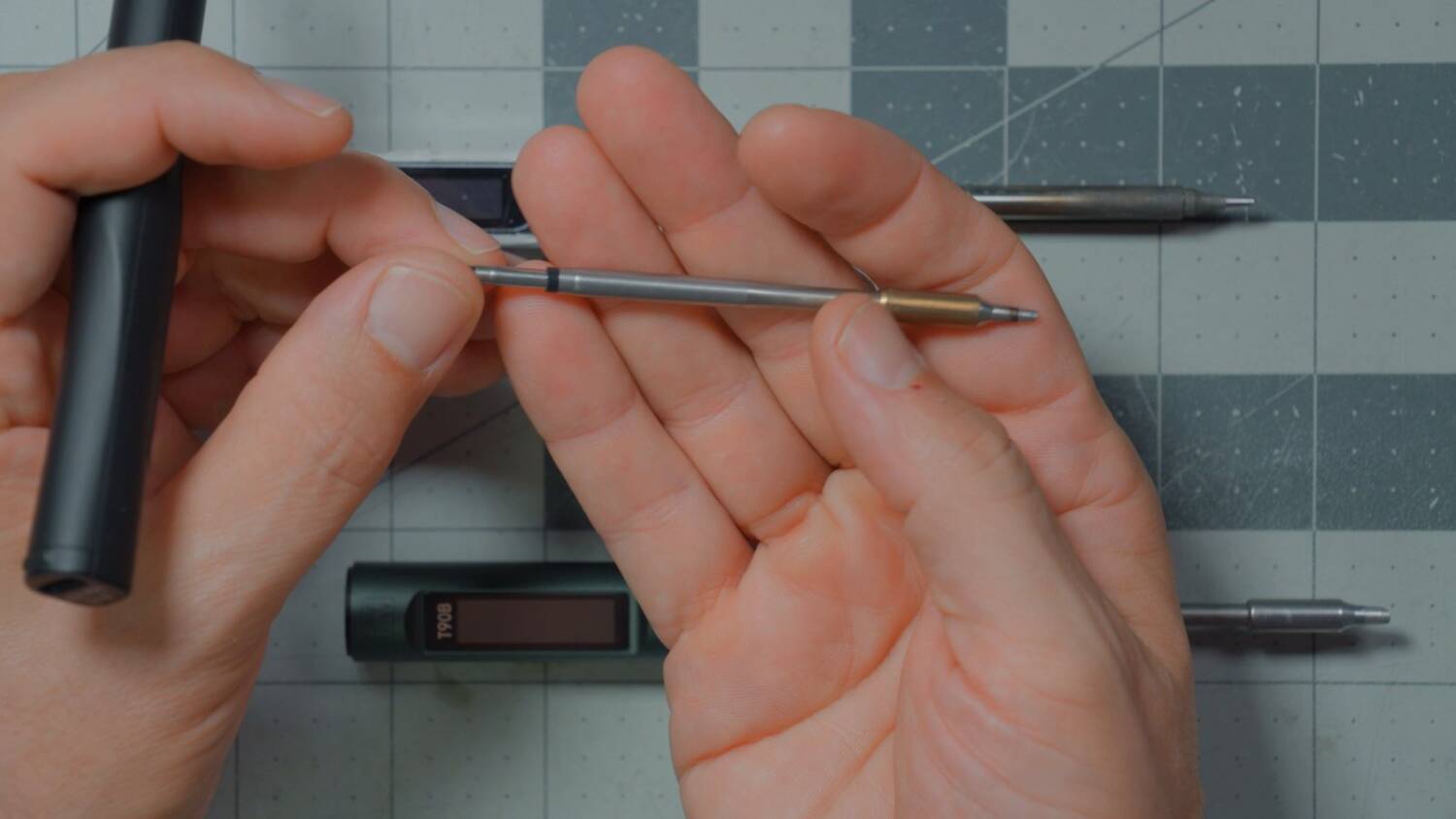
But I want to be clear: I said this in my video, and I named it “almost perfect.” It’s almost perfect because it has the JBC-style tips, and it’s small and compact. But powering it is a real freaking problem.
It can be powered from USB-PD, but only up to about 65 watts. That’s okay, but it’s not enough to really crank through a big 14 or 12 gauge XT60 wire on an ESC negative pad. It’s almost there. You can also power it from DC, and then you get 100-plus watts and it performs amazing. But it only takes up to 21 volts, so it doesn’t work with the 6S batteries you probably have. It only works up to 5S. And who has a 5S battery? I might not even have a 4S battery. Why can’t it just work on 6S? It would be perfect.
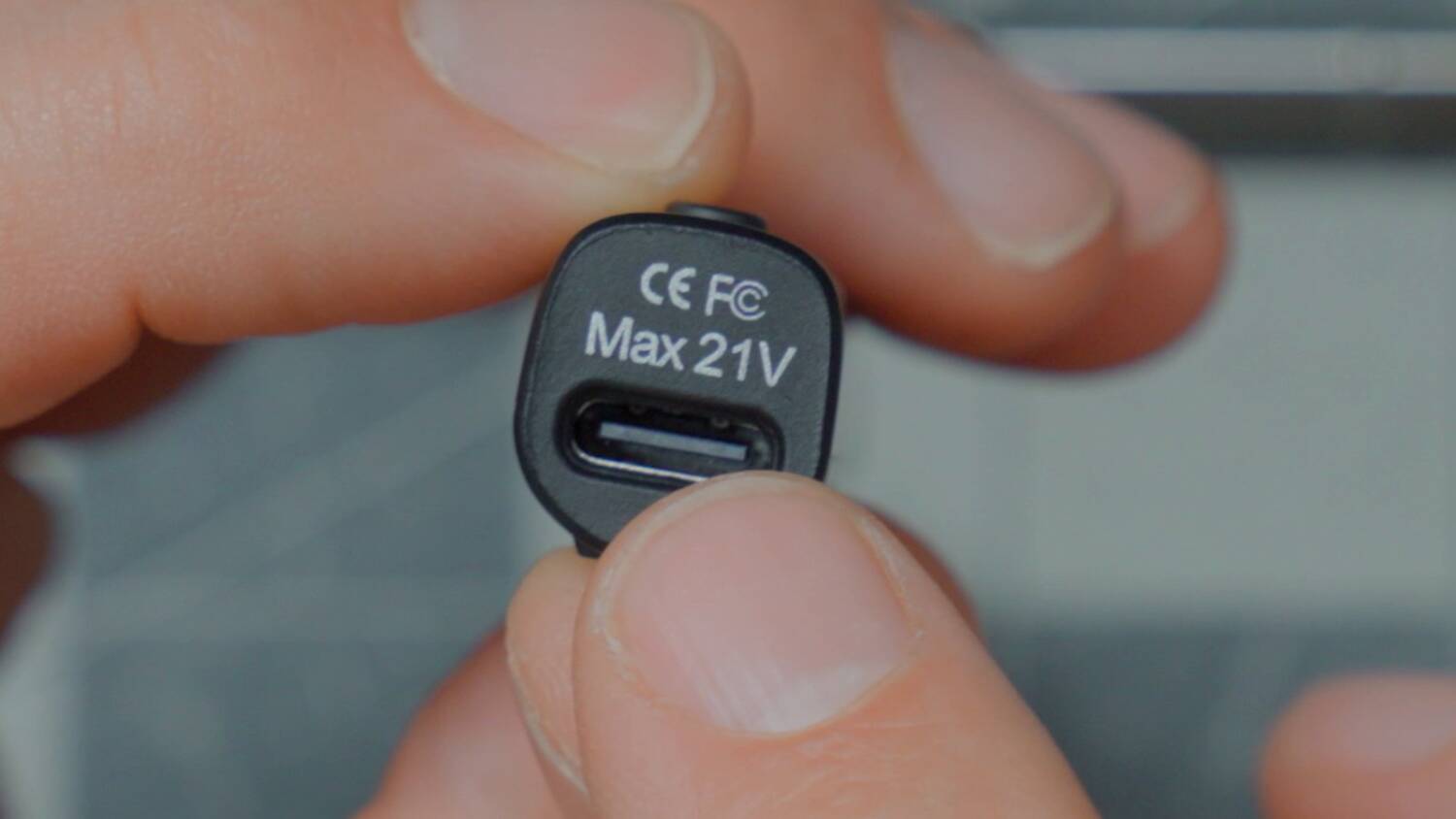
So I made a video about the S99, and I complained about it, and you guys in the comments said, “Bardwell, you’ve got to try the AlienTek T90B.” And oh my god, you were right. This is it. This is the third wife. Everybody knows your third wife’s the one you stick with, right?
AlienTek build quality is premium
One thing the T90B certainly has going for it: nice aluminum construction. It’s a little bigger and stockier than the others, but wow, it is beautiful.
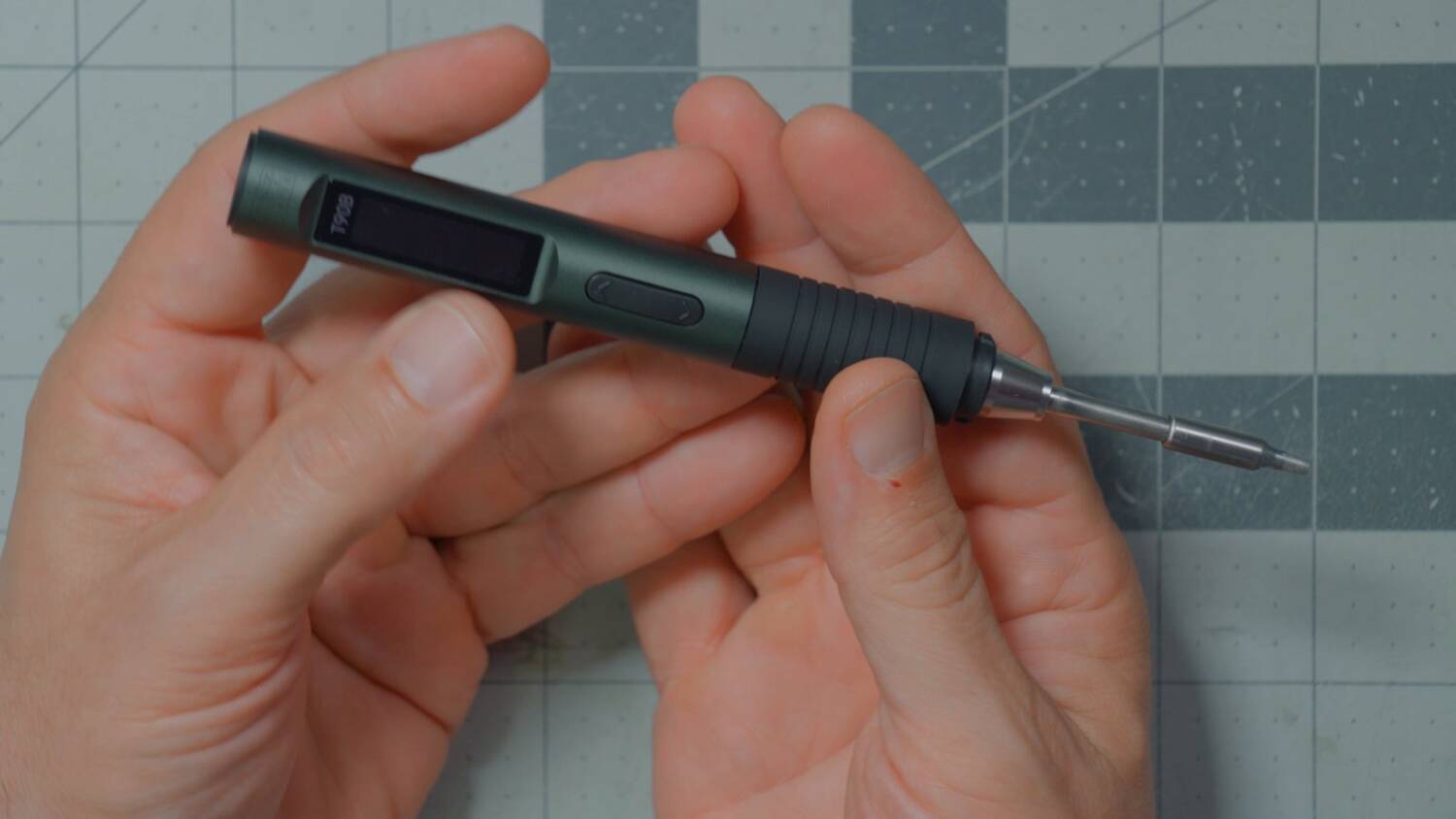
It even comes with a metal cap, so if your iron is still a little hot, you can put the cap on and put it away, and it’s not going to melt anything. It has a nice carrying handle, too.
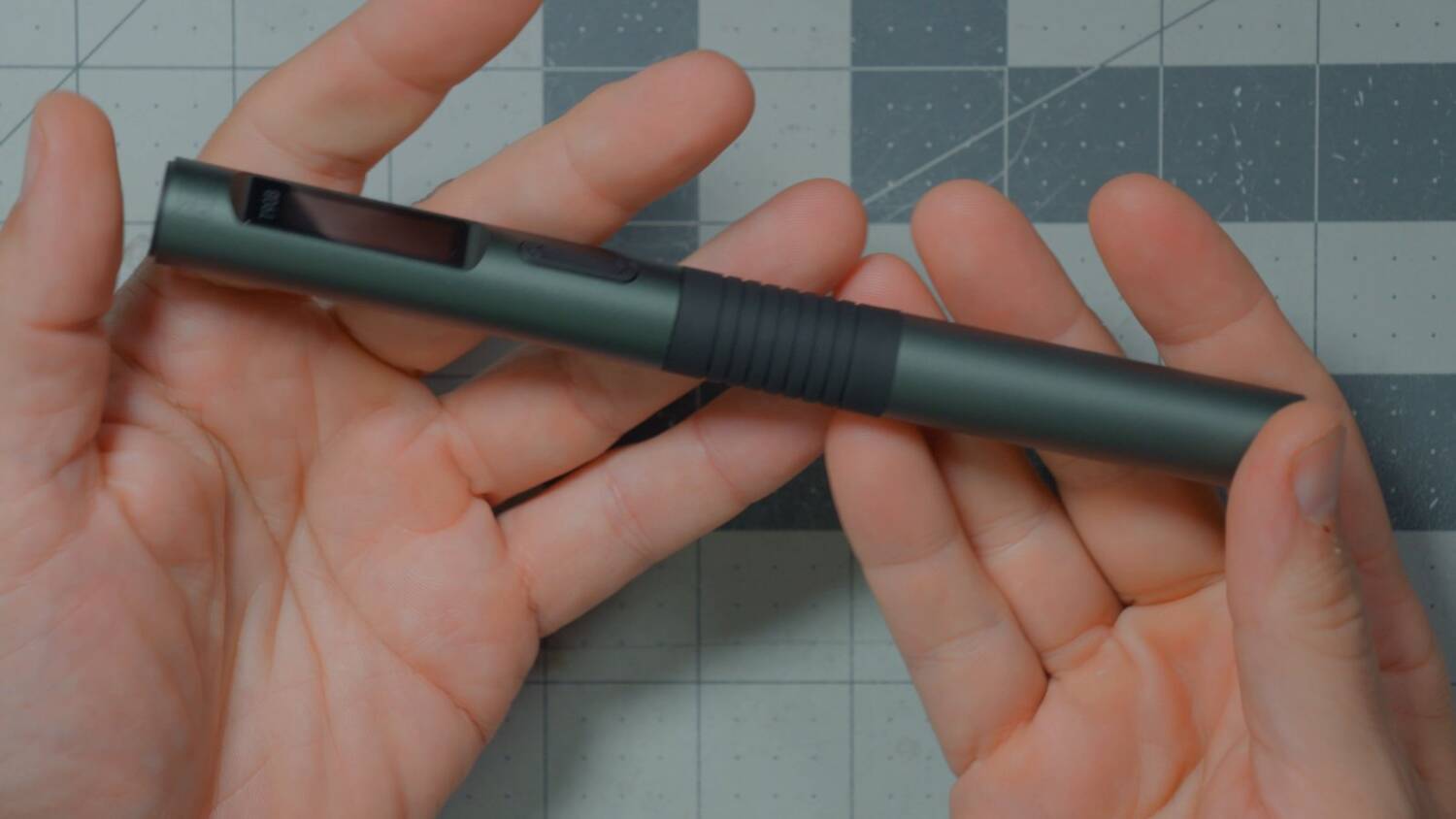
Takes JBC-style tips
It takes the JBC-style tips. And unlike the Sequre S99, it doesn’t require Sequre’s custom modified tips to work at 75 watts or whatever. These JBC tips are labeled C245, and they run at about 140 watts. That’s set by the resistance of the tip, which controls the power flowing through it. If you try to run the Sequre off USB with a standard tip, it draws too much power and shuts down.
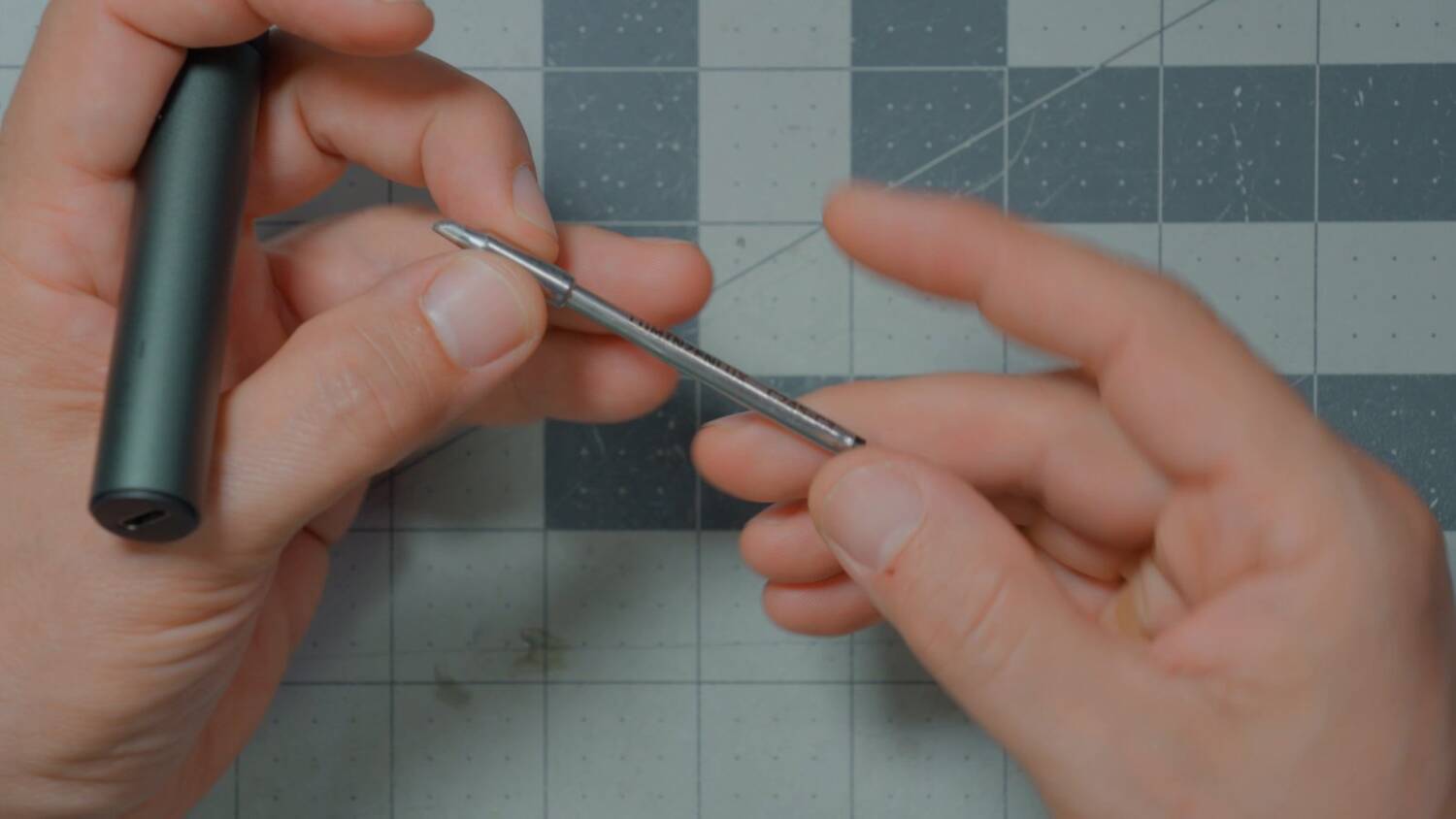
The T90B will run the standard JBC C245 tips at the full 140 or so watts. And it’ll do that both off USB-PD and off DC power, through the same USB-C plug.
140W USB-PD adapter
Most USB power bricks will not run up to 140 watts. In fact, if you go shopping for high-wattage power bricks, a lot of what you’ll find is a 220 watt brick with three outputs, where each output does less than 100 watts, or 65 watts or something. The 220 watts is the total.
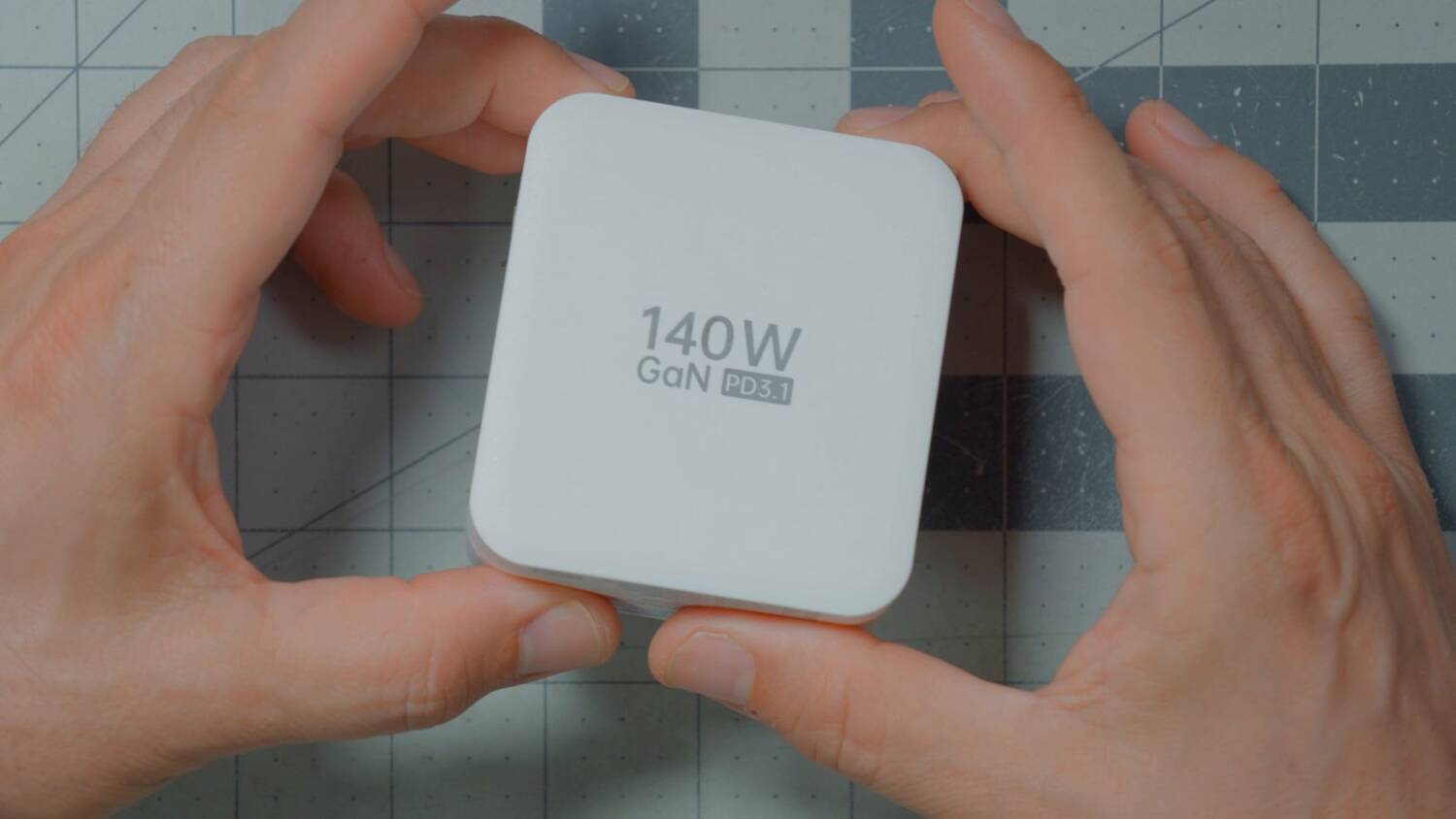
So I bought a kit from AlienTek that included this exact power brick, because I knew this brick and this USB cable would provide the full 140 watts. If you’re going to power it off the wall, you might want to do the same. (I tested what happens with a 65 watt charger, too. That’s in the Work Vol section below.)
You can buy it off Amazon, where it’s about three times as expensive, or off AliExpress, where it’s about half or a third of the price. You decide how you want to handle it.
DC power up to 6S
In addition to the 140W power brick, I can power it from a USB-C to XT60 cable that I made. I bought USB-C cables off Amazon that come unterminated, with a red and a black wire. I know I could make my own, but I didn’t want to take a chance that I’d wire up the USB-C port wrong somehow, so I bought a pre-terminated one and just soldered an XT60 to it. You could probably buy this pre-made, but it was pretty cheap and not too hard to make.
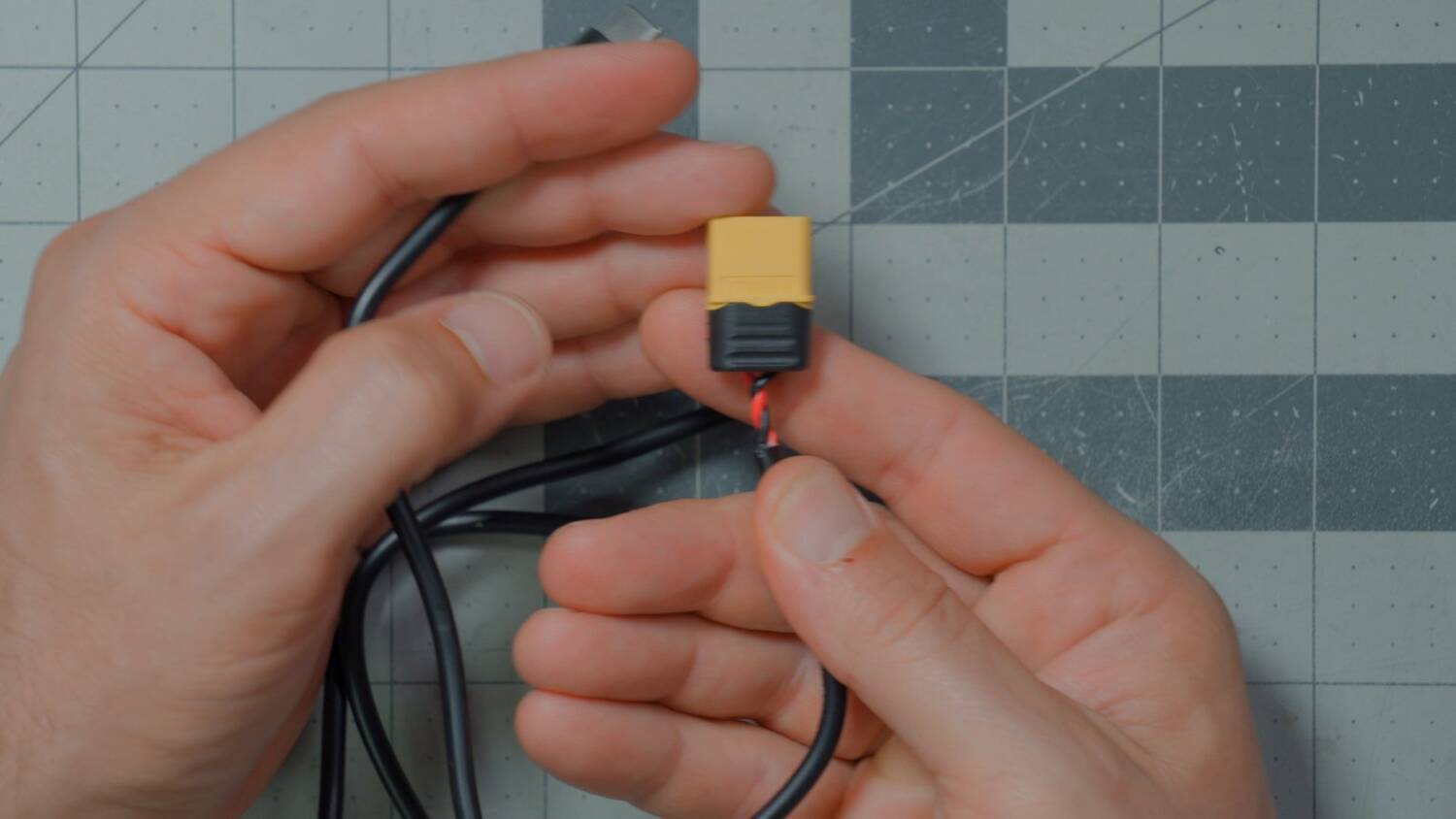
I have it set to use the accelerometer, because I’m left-handed, so it flips the display for left-handed use. By default it comes right-handed.
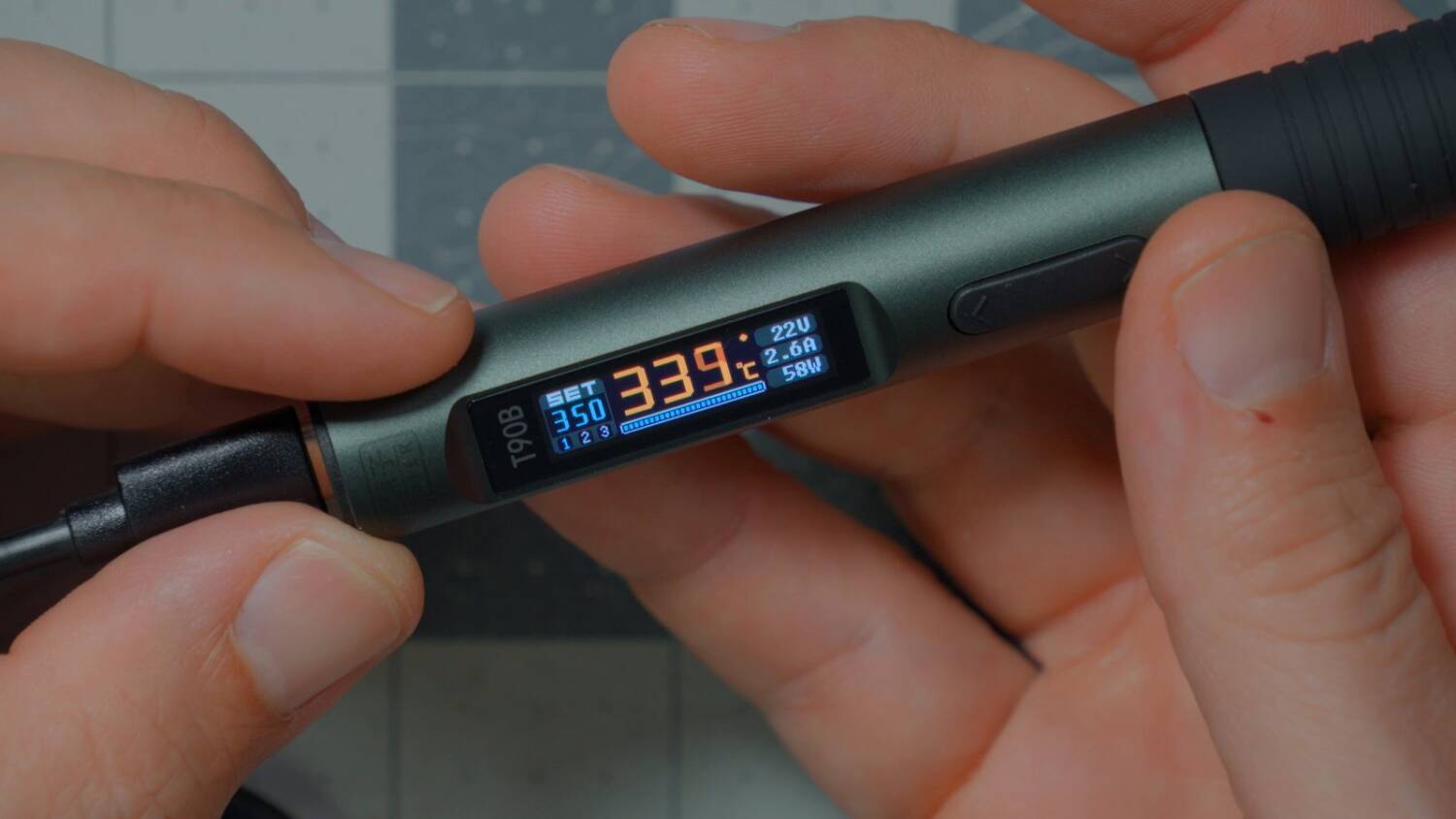
Plug it into a 6S battery, and it turns on. Press the button, and there’s a nice color display, which you don’t see on a lot of similar irons.
User interface and buttons
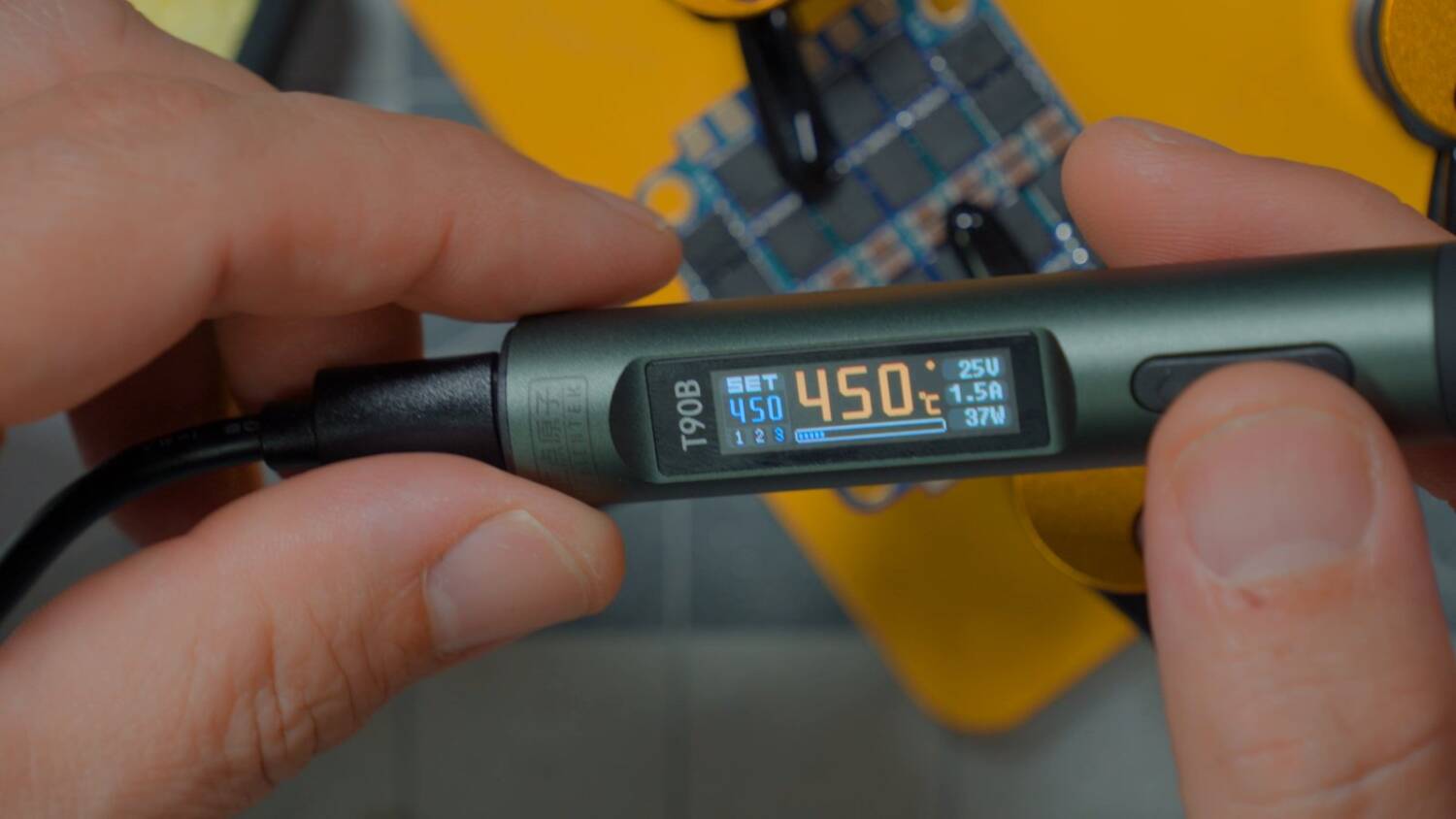
The screen shows the current power. There are three presets, and holding one side of the rocker switches between them. They’re fully configurable: you can set them to whatever temperature you want, up to 450°C. On the right side of the screen you can see the input voltage, plus the amps and watts it’s currently pulling, and a little graph at the bottom shows the power as it pulls it. It went up to a full 59 or 60 watts, then back down to 50. I was surprised it was only pulling 50 watts. Shouldn’t it pull up to 140? I wondered what the limitation was. (The answer is in the Work Vol section below.)
Hold down the other side of the rocker and it goes into standby. Press it once more to wake it up. So it’s really easy to let the tip cool off when you set it down.
I keep saying “one side of the rocker” because the left side is the preset and the right side is sleep. If you flip the iron over, it flips itself, so it’s always the left side and the right side, not the side nearest the screen and the side furthest from it. That may be a little counterintuitive. It took me a little while to get used to it.
Voltage / power display
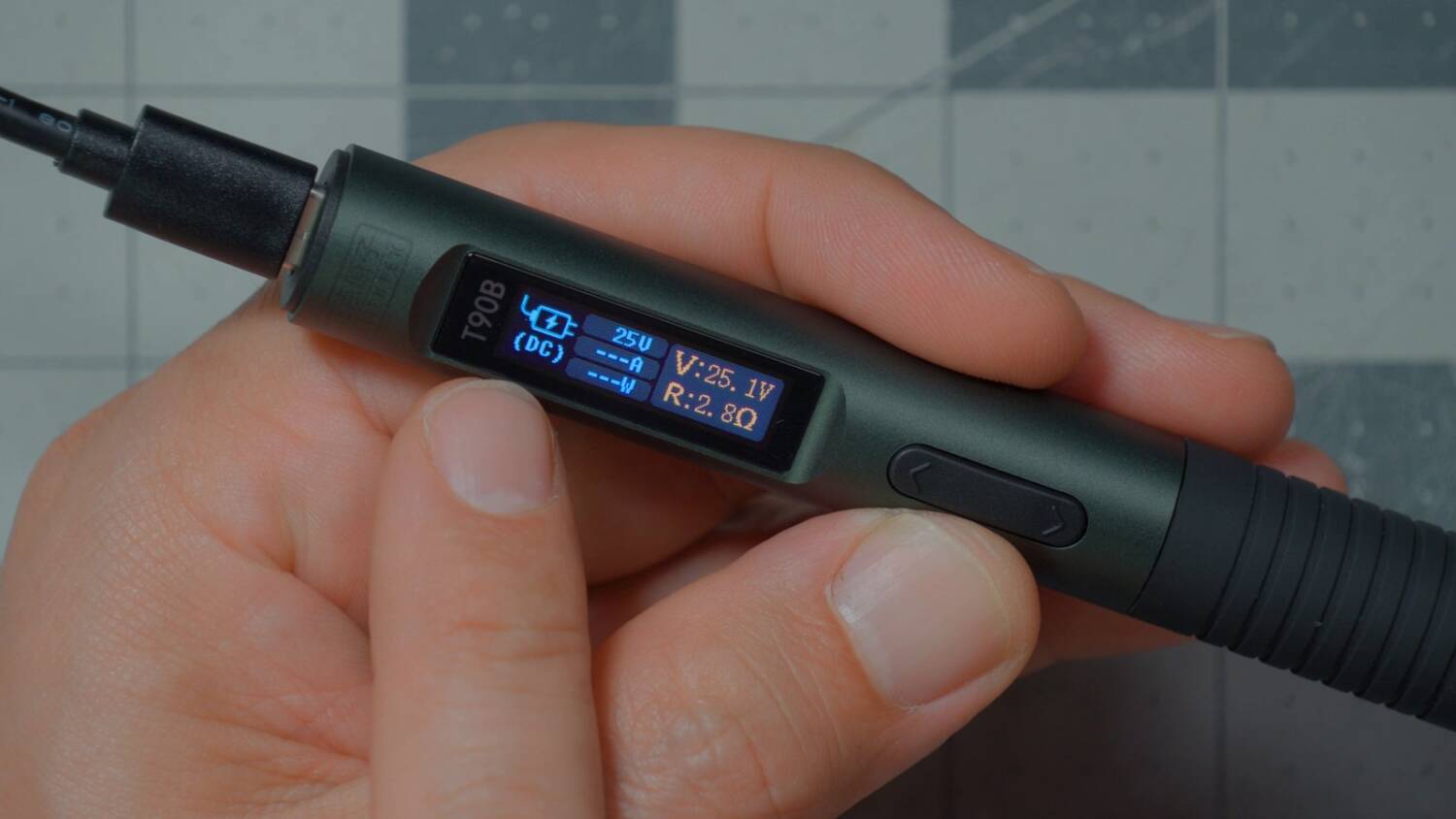
I think one of the best ways to learn the quirks and features of a device like this (Doug DeMuro, anybody?) is to look at the settings menu. You get into it by pressing both buttons at the same time.
The first thing to look at is Voltage Info. I love a good diagnostic screen. It shows the resistance of the tip, the voltage coming in, and that we’re on DC power, not USB power delivery.
Temperature step
Next is Temp Step: how many degrees the temperature jumps when you raise and lower it. If it were 1°, it would take you forever to get anywhere. The default is 10° at a time, and it’s fully configurable.
Three temp presets
Temp Preset sets the three presets I was switching between. I like to do 325, 350 and 400, or maybe 350, 400 and 450, depending on what I’m soldering and the heat performance of the iron. On a better-performing iron I’ll usually have lower presets, because I don’t need all that extra heat to get the job done.
Sleep / standby mode
Sleep Temp is the temperature the iron goes to when it goes to sleep, and then there are Sleep Time and Standby Time. To demonstrate, I set both to 30 seconds and set the iron down.
After 30 seconds, the iron went to sleep. Sleep means it goes down to 200°, so it’s still warm and will heat up quickly when it wakes. It wakes up automatically when it detects my hand holding it. It doesn’t seem to be accelerometer-based. As far as I can tell, it detects you touching the handle.
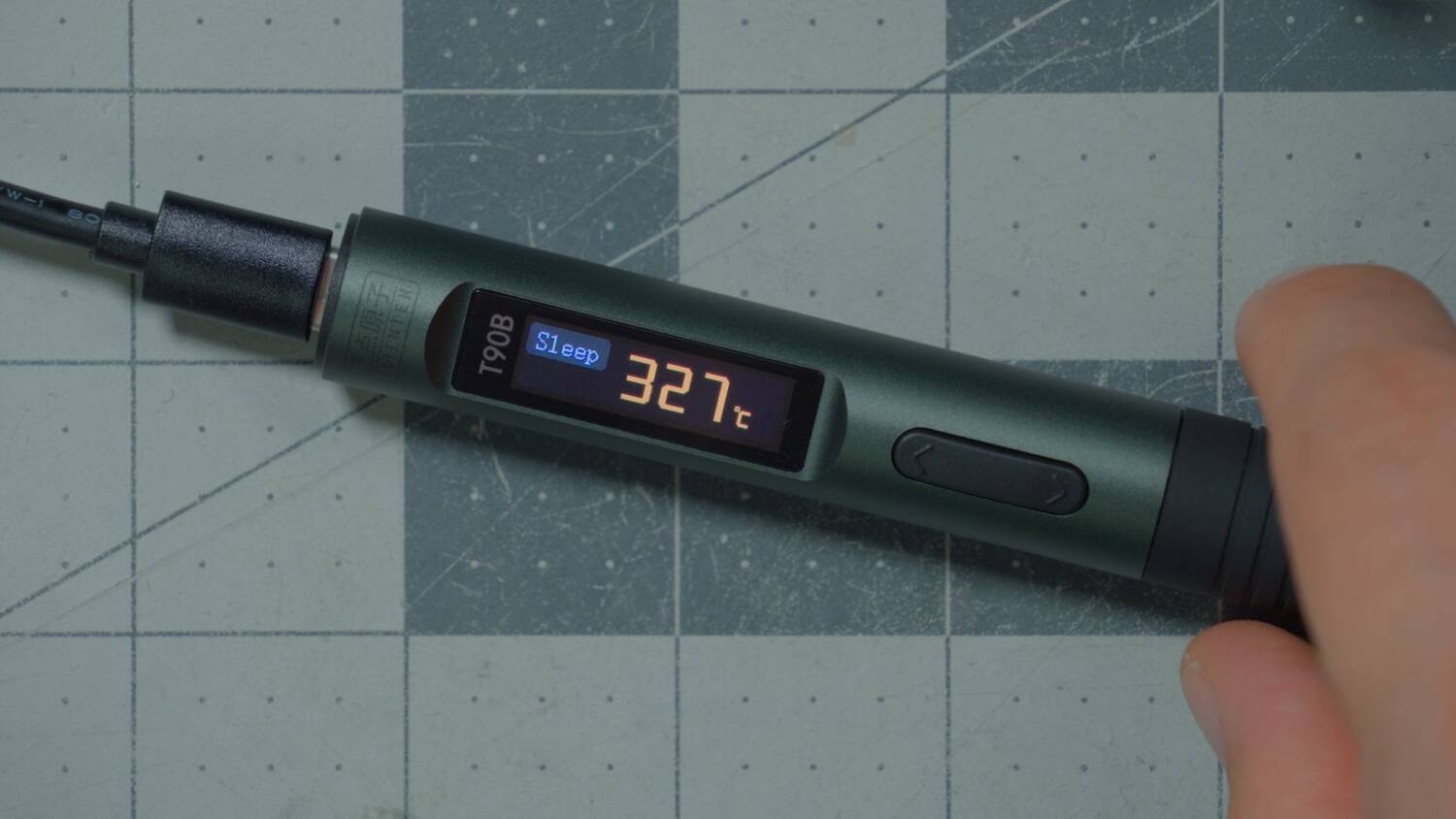
Holding down the button puts it not into sleep but standby. Standby is a lower-temperature mode. I believe it goes down to 50°, so it’s cooler, but it takes longer to wake up.
Set the iron down and it goes to sleep after the sleep time (the default, I think, is 3 minutes), and then after more time it goes to standby. So it goes to 200°, then to 50°. After an even longer time, it goes to an even lower power mode where it basically shuts itself down. All of that is fully configurable.
Configurable PD voltage
Next is Work Vol. That’s V for voltage, not V for volume. That threw me off at first. It sets the voltage the iron will try to pull from its power source.
On a DC power source, there’s basically no reason not to set it at max, which is 140W. But it also controls what the iron will try to pull from a USB power bank or USB-PD charger. And this is important: if you shelled out for the big 140 watt charger, you can set it to max power. If you have a smaller charger, go into Work Vol and turn it down to whatever output your charger actually supports.
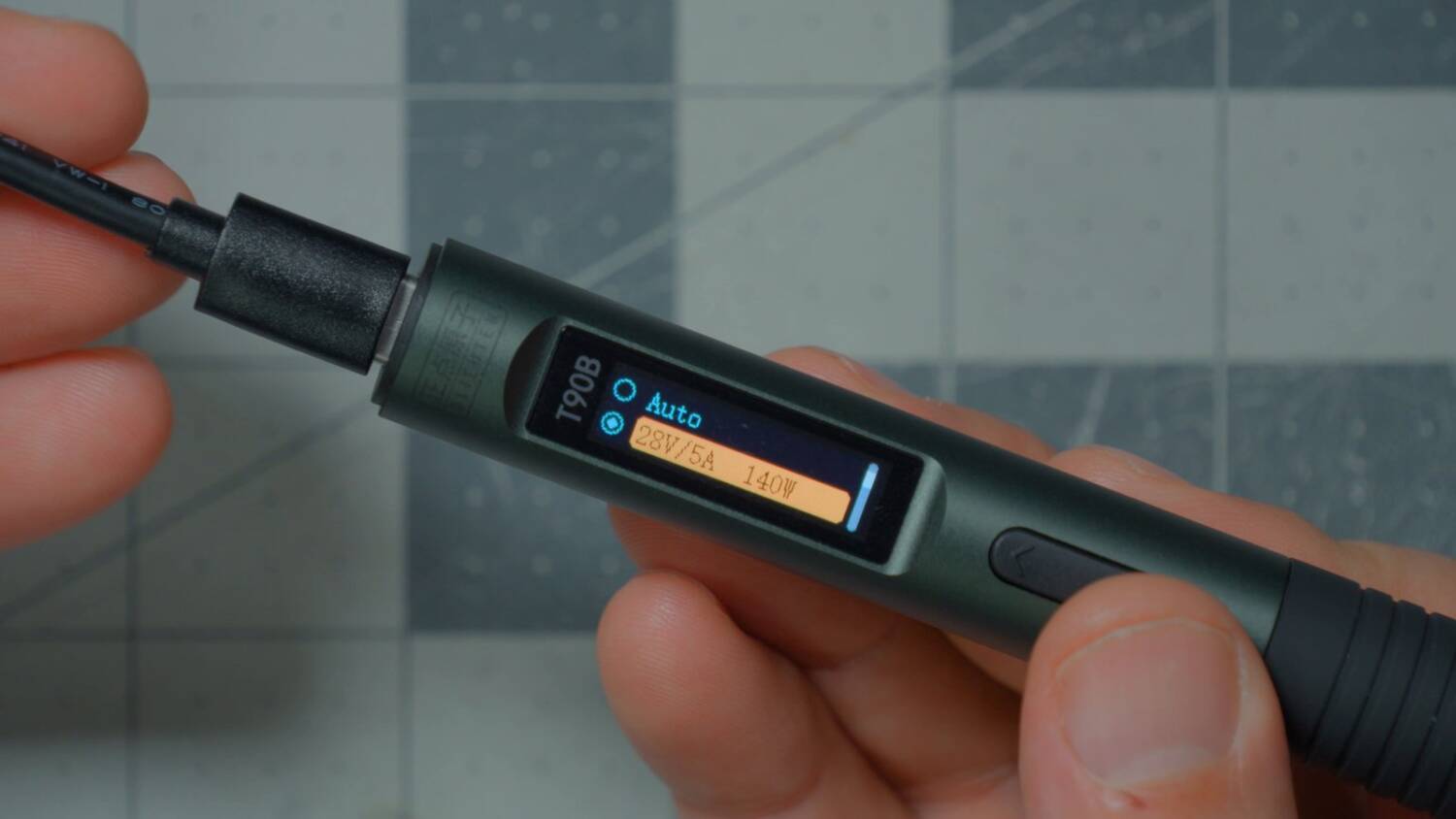
How will you know if it’s pulling too much? The power will cut off, the iron will reboot, and it will refuse to work. At that point you know your power supply isn’t up to snuff, and you go to Work Vol and lower it. Of course, you’ll have less power, less heat, and maybe less soldering ability, but it’s better than nothing. Or maybe it’s not. Maybe you just can’t get done what you need to do, and you need a bigger power supply.
Why to use a manual Work Vol, not Auto
I imagine I’ll be running this off a LiPo almost all the time, so I’m leaving it at the max: 28 volts, 5 amps.
Auto works fine with USB power delivery. But on Auto, it won’t necessarily draw full power from a 6S LiPo. It’s like it doesn’t trust that voltage. I had it limiting itself to about 68 watts, and I was like, why not go to 140 watts? The battery can take it. Only by manually setting Work Vol to the max was I able to get it to pull full power from a battery.
Power Trim (doesn’t work … why?)
There’s also a Power Trim setting, which lets you change the amps and watts it will pull. So you could say, “I’ve got a 140 watt power supply, but I only want you to pull 65 watts,” for whatever reason. It lets you clamp it down a little lower. In my case I want it all the way up: 6 amps, 150 watts.
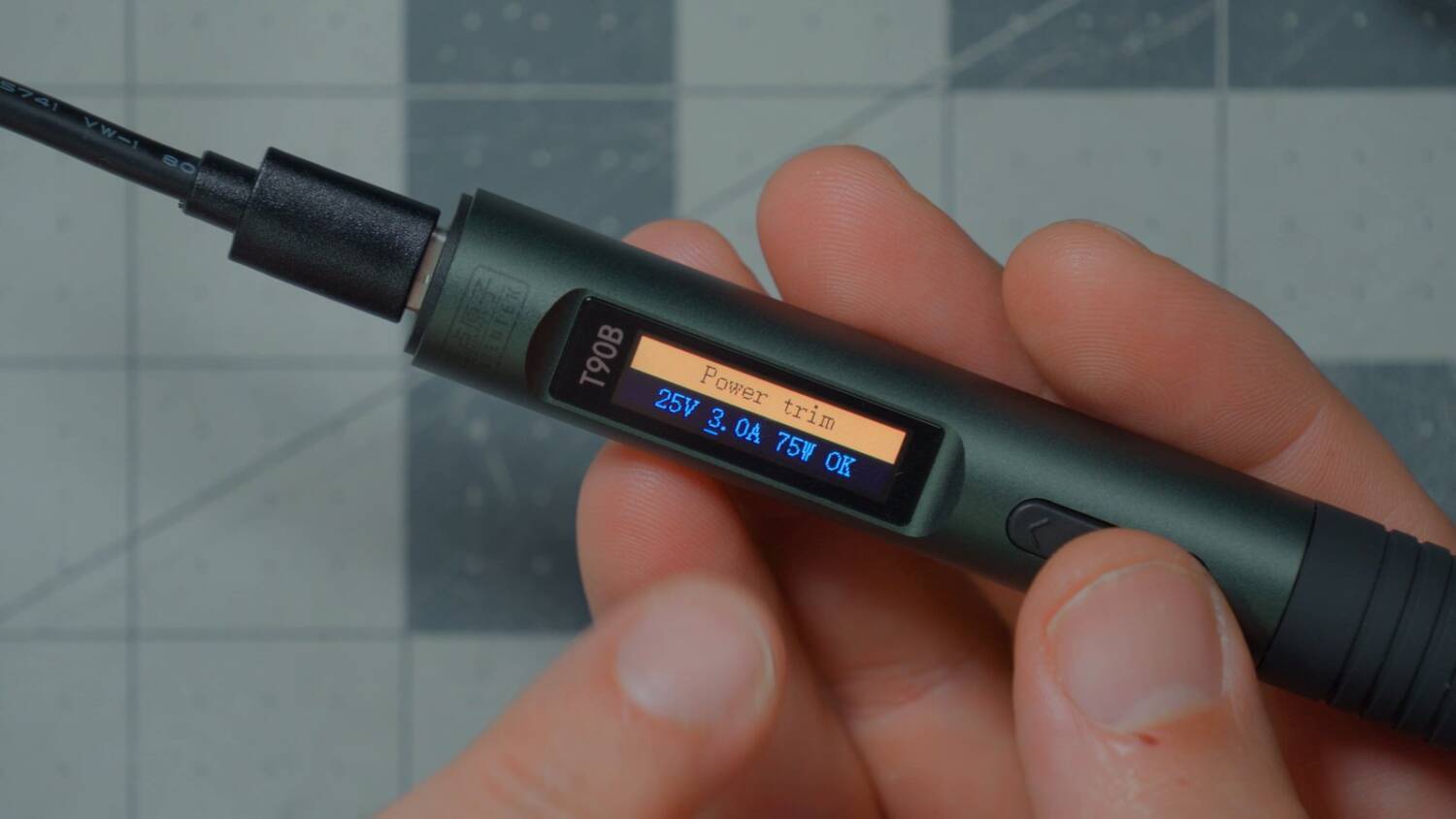
Except it didn’t take. I set it, backed out, and it was back at 3 amps. I’d had this problem before and thought I’d solved it. I set Work Vol to 28 volts, 5 amps, which it remembered, then set Power Trim to 6 amps again. That time it remembered. Then it reset again when I power cycled.
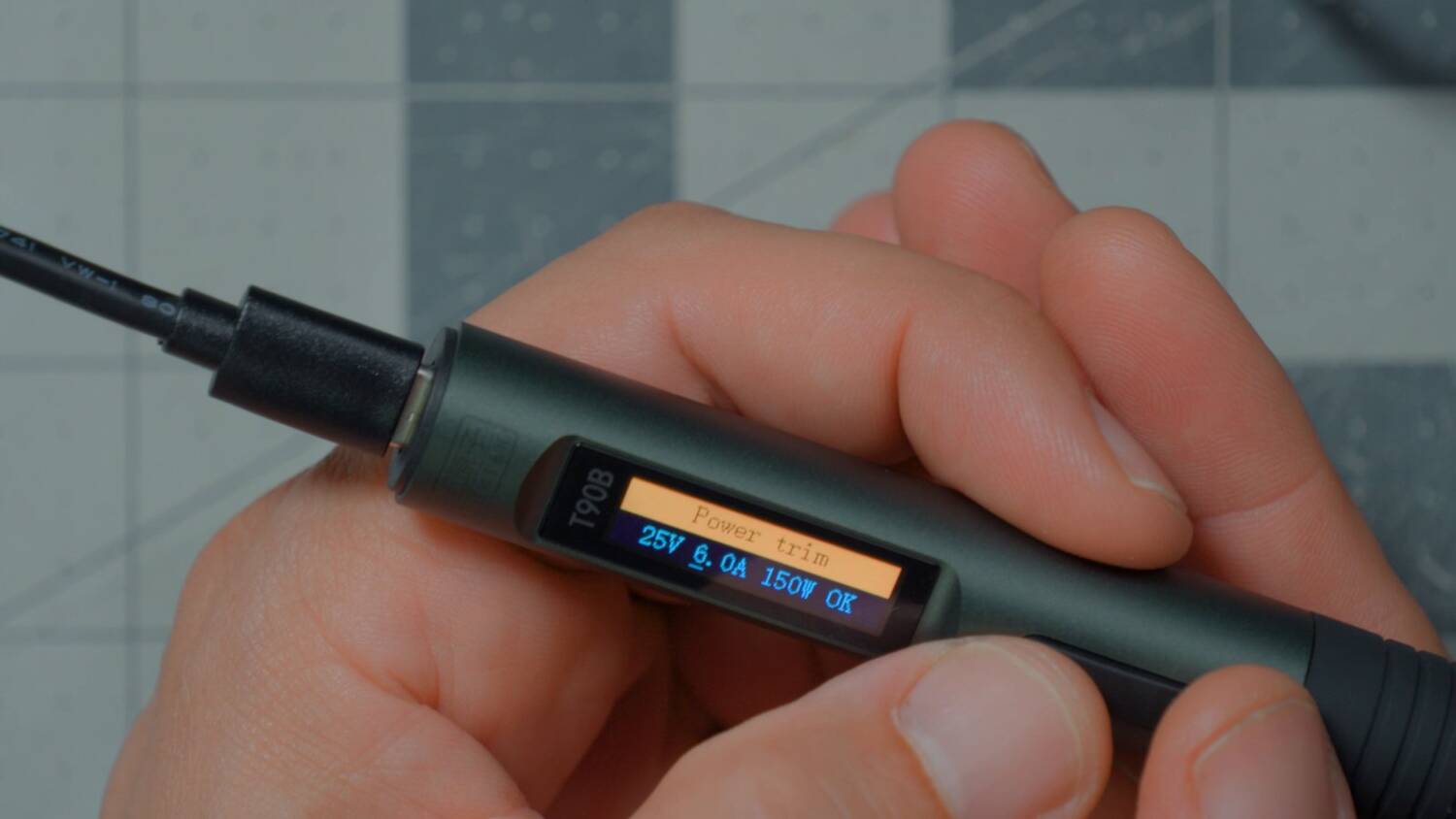
I can’t figure out what’s going on. Sometimes Power Trim seems to save, and sometimes it doesn’t. Maybe it doesn’t take when Work Vol is set to Auto. It’s got something to do with these buttons. In the end it saved, and I don’t know what I did. I’m just glad it saved.
Temp unit, language, screen rotate
Moving on: Temp Unit is degrees Celsius or Fahrenheit, and Language is English, Chinese and so on. Rotate 180 lets you set the screen rotation manually, or have it auto-rotate based on the accelerometer. I should probably just set it to left-handed and leave it there.
PO Heat
PO Heat is whether the iron automatically starts heating when it first powers up, or waits for you to push a button. This is kind of a big deal. If your power supply isn’t keeping up and the iron keeps rebooting, it seems like you might not be able to get into the menu. With PO Heat off, it starts up in standby, and you can go into the menu and change settings if you’re having an issue. So PO Heat is off. We don’t want it to heat automatically when it first powers up.
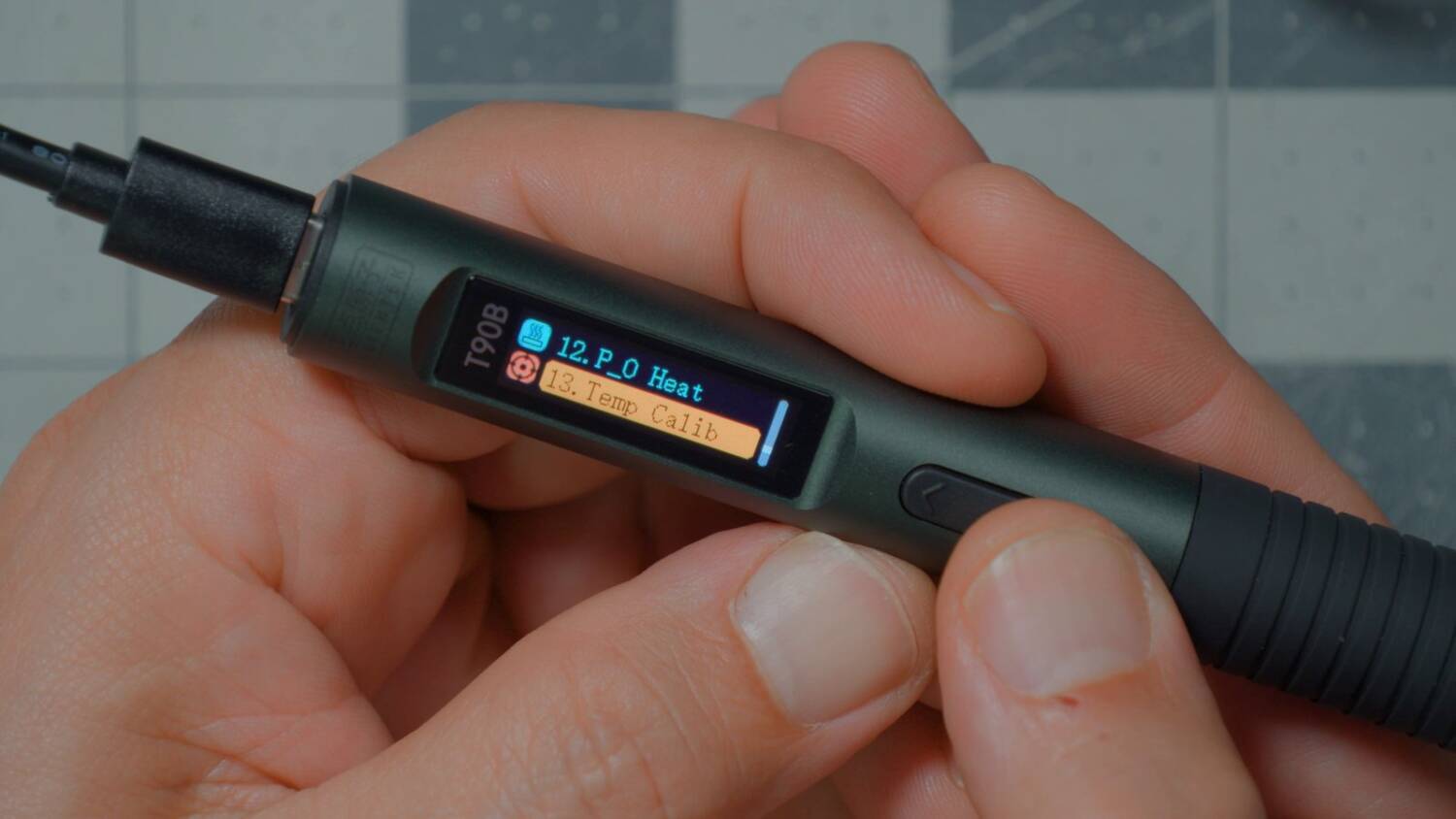
Temp Cal lets you calibrate the temperature, if that’s something you feel like doing. Beep turns the beeps on and off. And Restore puts the settings back to the defaults. That’s basically everything this iron can do.
Included tips are useless
Another thing I love: if you just set it down on the table, the heating element doesn’t touch. It also comes with a little silicone resting pad and sponge. I have something else I like to use instead, but it’s pretty slick. It even has storage for its tips.
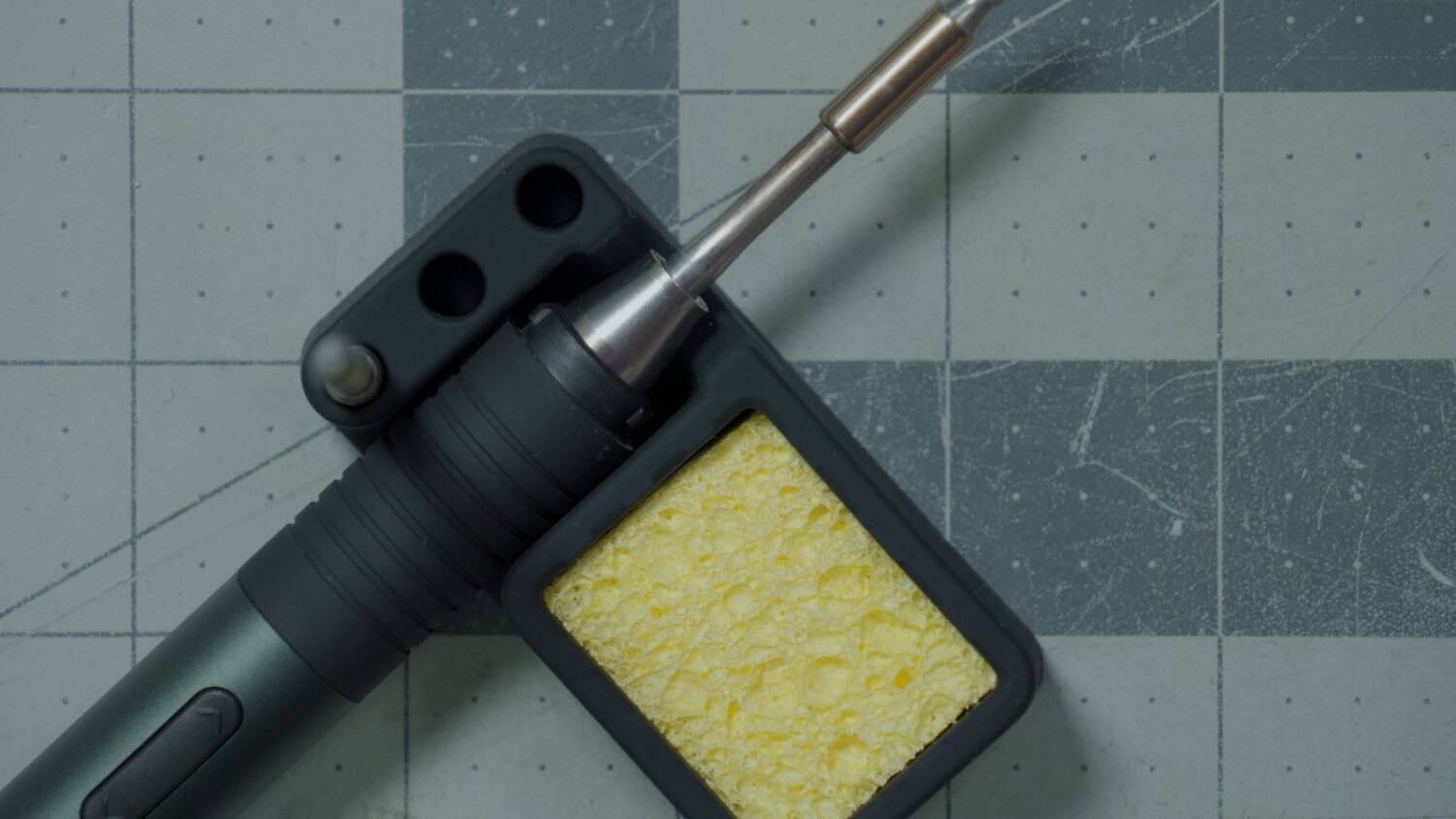
One downside: the tips it comes with are all completely useless. They’re C245 tips, so they’re about 145 watts. One of them is maybe useful for something, but the other two are so tiny they’re useless for soldering anything of any substantial size. If you’re going to sell an iron with C245 tips, maybe sell it with some beefier ones.
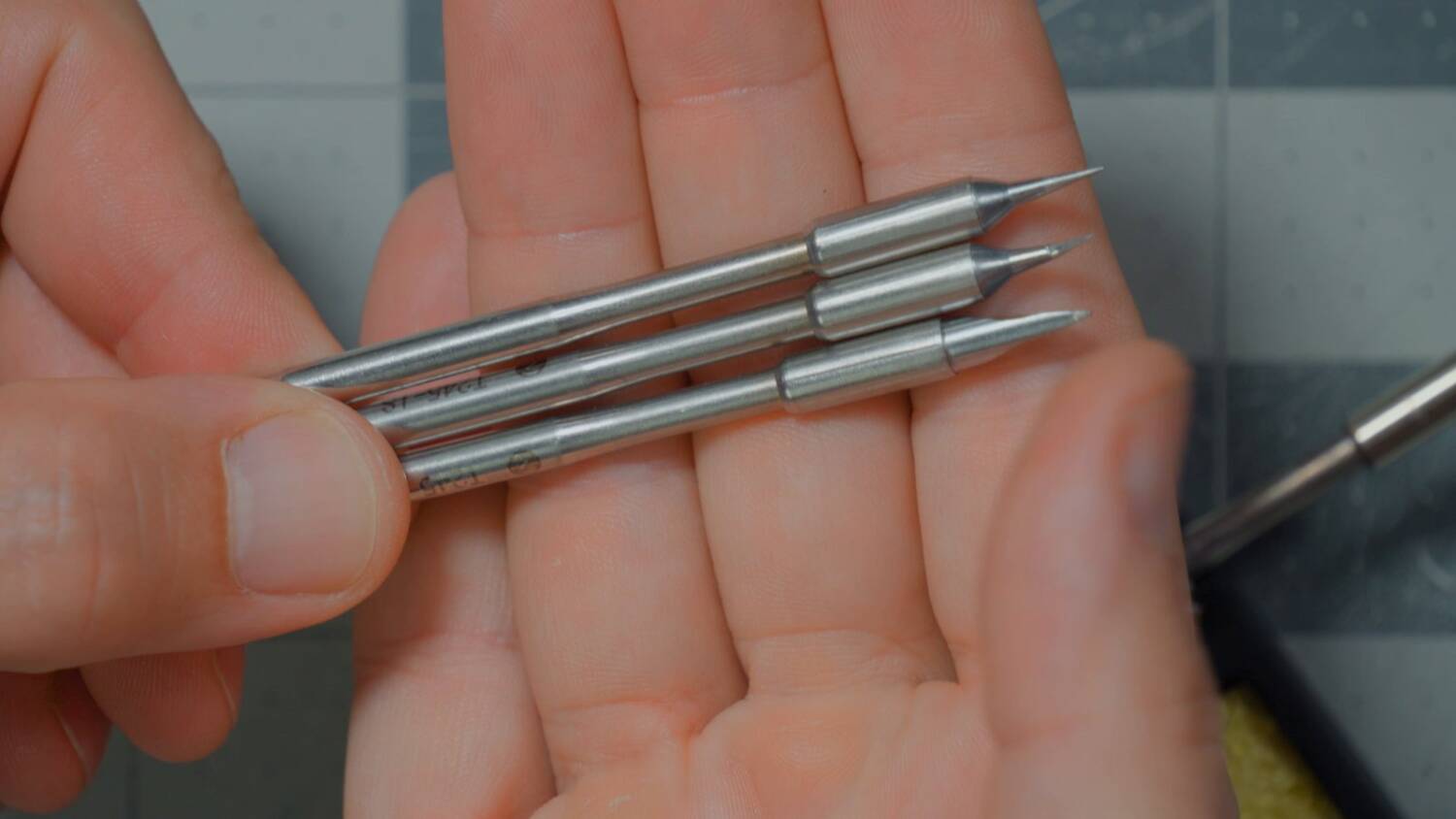
But whatever. You can get a bunch of aftermarket tips cheaply on AliExpress, or buy the authentic JBC tips if you want to spend 45 or 50 bucks on a single tip. They are very good-quality tips.
Soldering example
With the iron set at 400°, I tinned a wire. No flux, no nothing. It was cooking away, and only pulling 50 to 70 watts. It’s not even using the full 140.
Then the real test: the same ESC I used to demonstrate the Sequre S99. The negative pad is the one that’s the real test, but I soldered the positive pad first. Bing, bang, bong. That was pretty fast. I bridged a pad on the next one, because my hand slipped. I normally solder with my face closer so I can see what I’m doing, but I was trying to keep my head out of the camera. Still, you saw how fast that thing heated up, and that’s only at 400°.
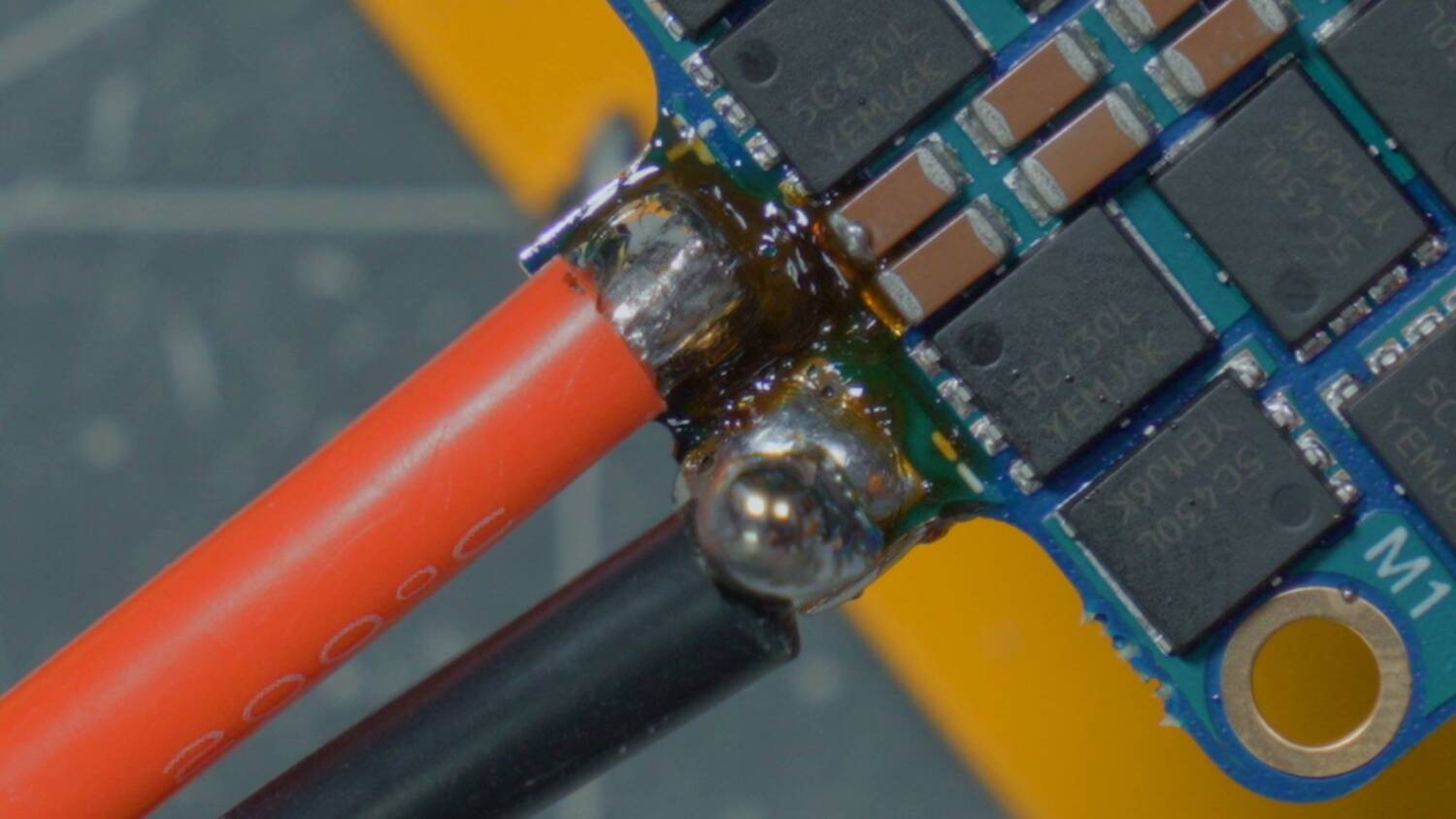
It goes up to 450, so I turned it up to 450. It overshot to 480 for a moment, then settled at 450. This thing heats up like crazy. Then I desoldered the negative pad: boom, liquid, off. ESC negative pad, done. Positive pad, just like that.
Conclusion
That’s freaking amazing. That’s the kind of speed I wanted out of the Sequre S99, and it wouldn’t do it, because it wouldn’t do the full 100 watts until I put it on DC, and then it wouldn’t take a 6S battery.
This iron is, for the time being, my ultimate travel iron. It has all the features you could want. It has fantastic ergonomics. It has great build quality. It takes JBC-style tips. It does max power whether you’re on USB-PD or DC. I cannot think of a single thing I would ask for from this iron, except for them to sell it with tips that aren’t completely useless for 150 watt soldering.
You can get it on AliExpress for less than 40 bucks for just the iron. It’s more if you get it with the power adapter, which is stupidly expensive. But you can get the iron for under 40 bucks, spend another 10 or 20 bucks on tips from AliExpress, and freaking rock and freaking roll.
I do feel a little guilty about the Sequre. I meant everything I said about it. It was so good. It just had one problem, and I said in the video that maybe I’d switch to it, maybe I wouldn’t. Then immediately you guys in the comments told me about the AlienTek, so the least I could do is tell you about it. Should I take the Sequre video down? I’m going to leave it up, because I think you need to know that it has a problem.
The T90B is on the Tools page of the Ultimate FPV Shopping List.
The full review, with the soldering test, is on my YouTube channel.