Basically, all of the links on this page are affiliate links. I receive a commission (at no extra cost to you) if you make a purchase after clicking one of the affiliate links below. Read our Affiliate Link Policy for more information.
If you’ve got a Betaflight drone with a GPS on it, you know that Betaflight’s Position Hold, Altitude Hold and GPS Return to Home work much better with a compass. But if you’ve got a compass, you have to get the compass orientation and the Betaflight compass calibration right, and that has been a gigantic pain in the butt. Until now. Betaflight has made it much, much easier, and here’s how.
Requires 2025.12 or newer
The first thing you’ll notice is that I’m in the new version of Betaflight Configurator, and it all looks really different. With Betaflight 2025.12 they released a new layout for the Configurator, and many of these new features aren’t available if you’re sticking with the old one. So it’s time to update.
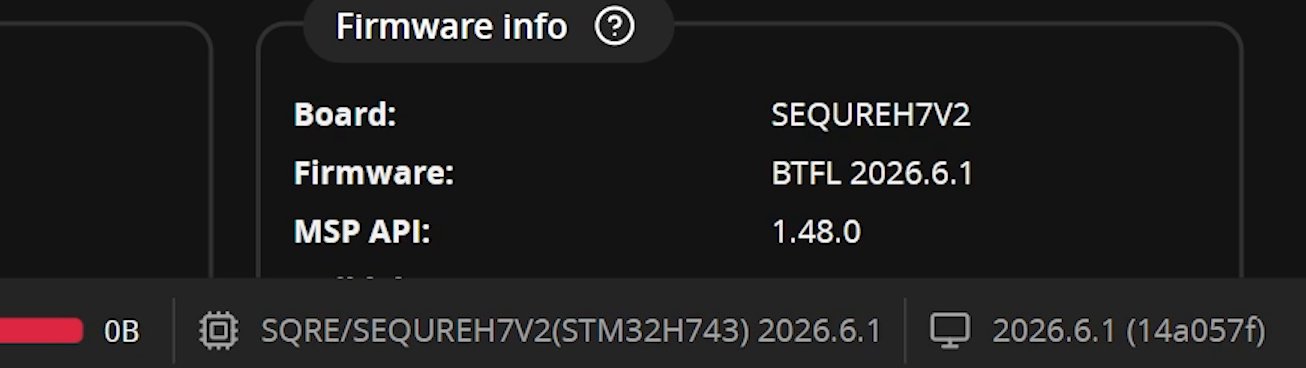
You need Configurator 2025.12 or newer. I’m in Configurator 2026.6.1. And you need a newer version of Betaflight on the flight controller: the Configurator won’t show you these options if your flight controller has an older version. I believe what I’m about to show you starts with Betaflight 2025.12.1, but I’m not 100% sure whether it goes back further than that.
Two new features in the Sensors tab
Go to the Sensors tab. Obviously your magnetometer needs to be working. Mine wasn’t at first, because the GPS isn’t powered without a battery plugged in. (I used a smoke stopper, because my props were on. That’s why it’s okay to plug in a battery with the props on.) Once it’s powered, the magnetometer sensor lights up at the bottom of the screen.
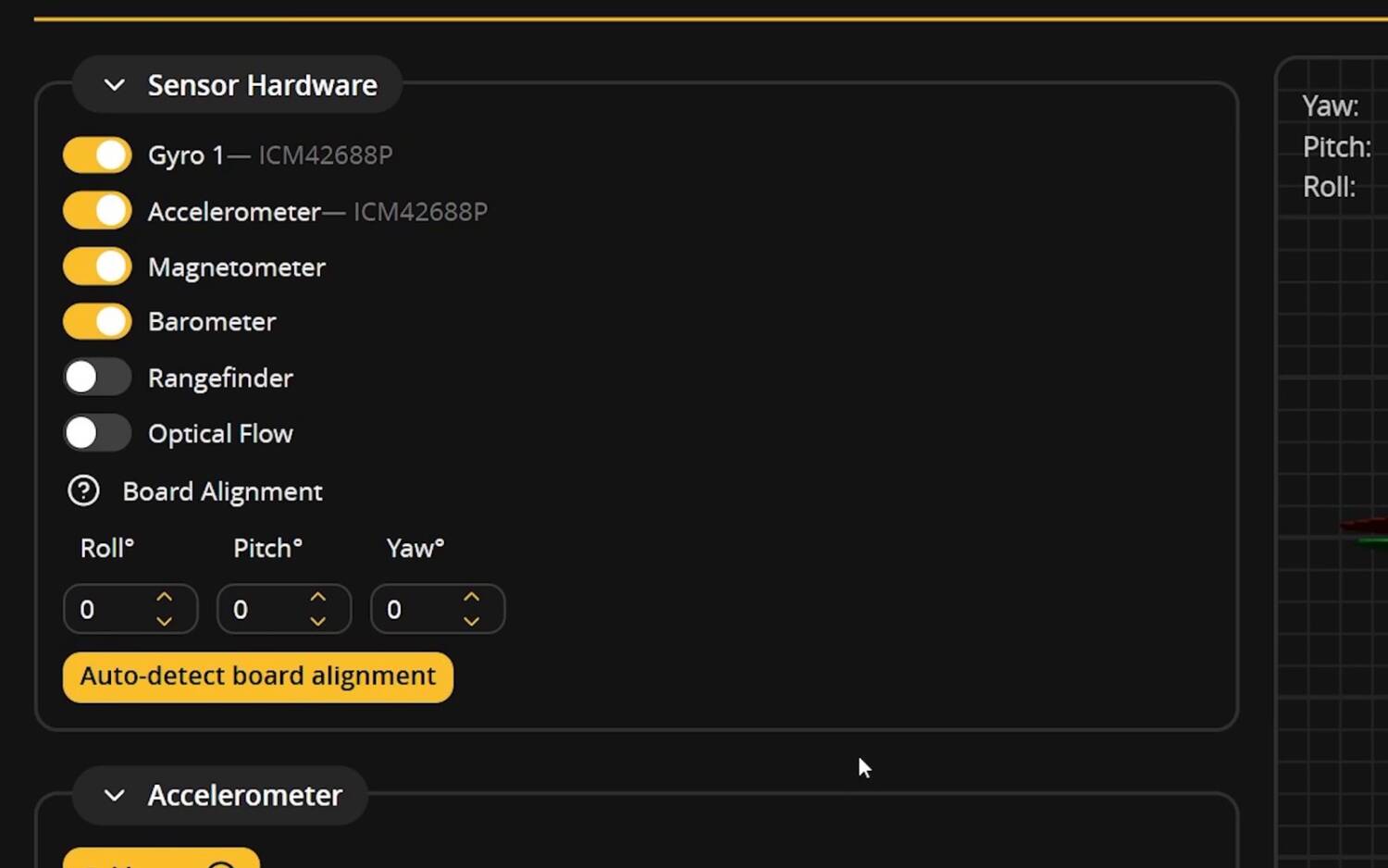
The Sensors tab has two new features. I think the first one is really just replaced by the second. I’ll show you both, and you’ll probably not even use the first one.
Auto-detect mag alignment
The first one is auto-detecting the magnetometer alignment: the Detect button next to Magnetometer Alignment. This is really important. If the compass isn’t oriented on the drone the way the flight controller expects, then when the compass says it’s facing north, the drone will actually be facing east. You’ll get the toilet bowling effect: you go into Position Hold and the drone just toilet bowls and slowly goes out of control. The default alignment is usually CW 270 flip, except sometimes it’s not, and sometimes it’s some wild thing. It’s just so hard to get the magnetometer aligned correctly.
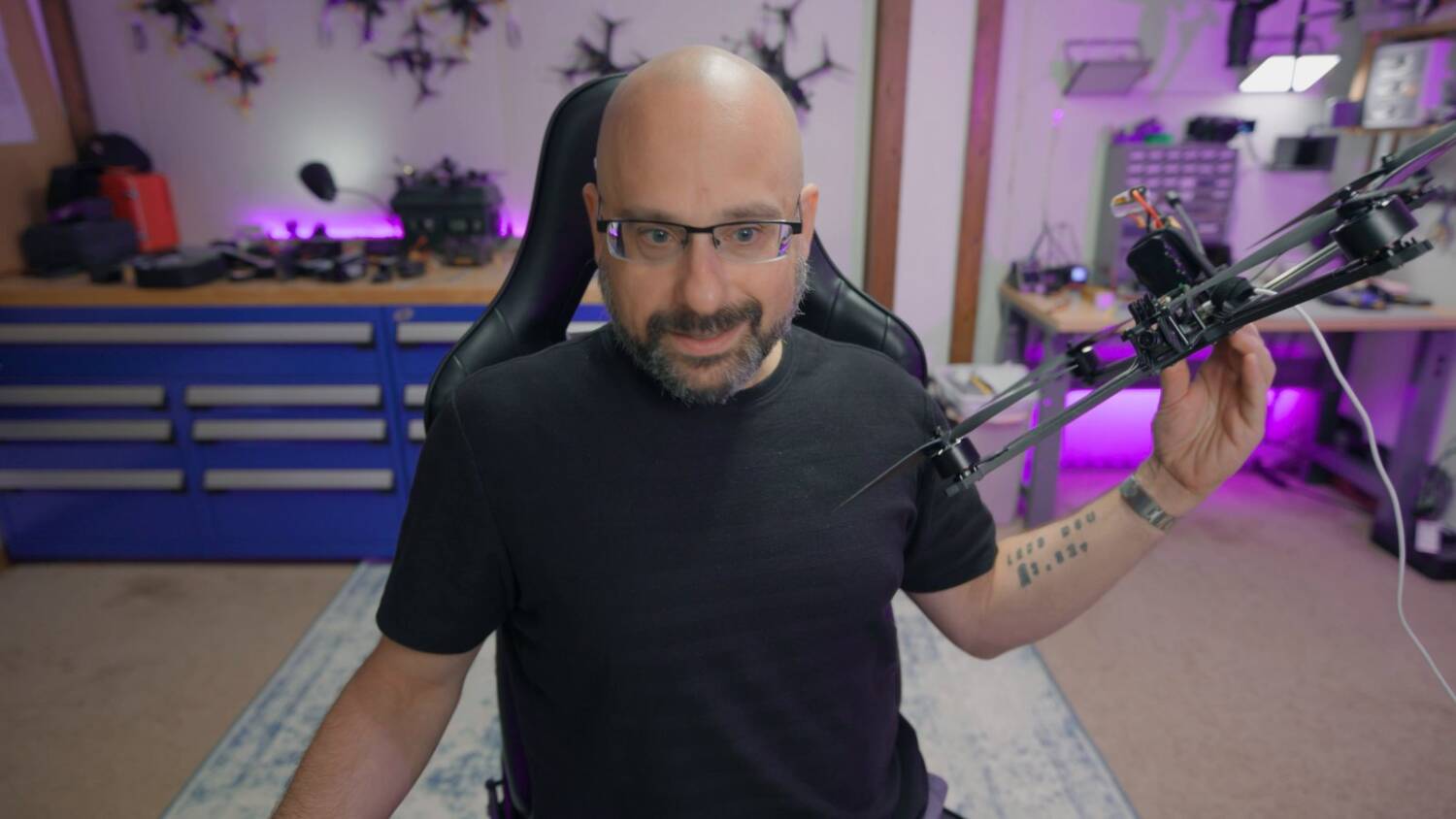
So you hit Detect, and it says to tilt the drone. I’m not even really sure how I’m supposed to tilt it. Am I supposed to do the 360° dance? I just wobbled it around. I haven’t been able to find any documentation on the right way to do this. (I’m sure the comments will show me where it is, and I’ll look dumb.)
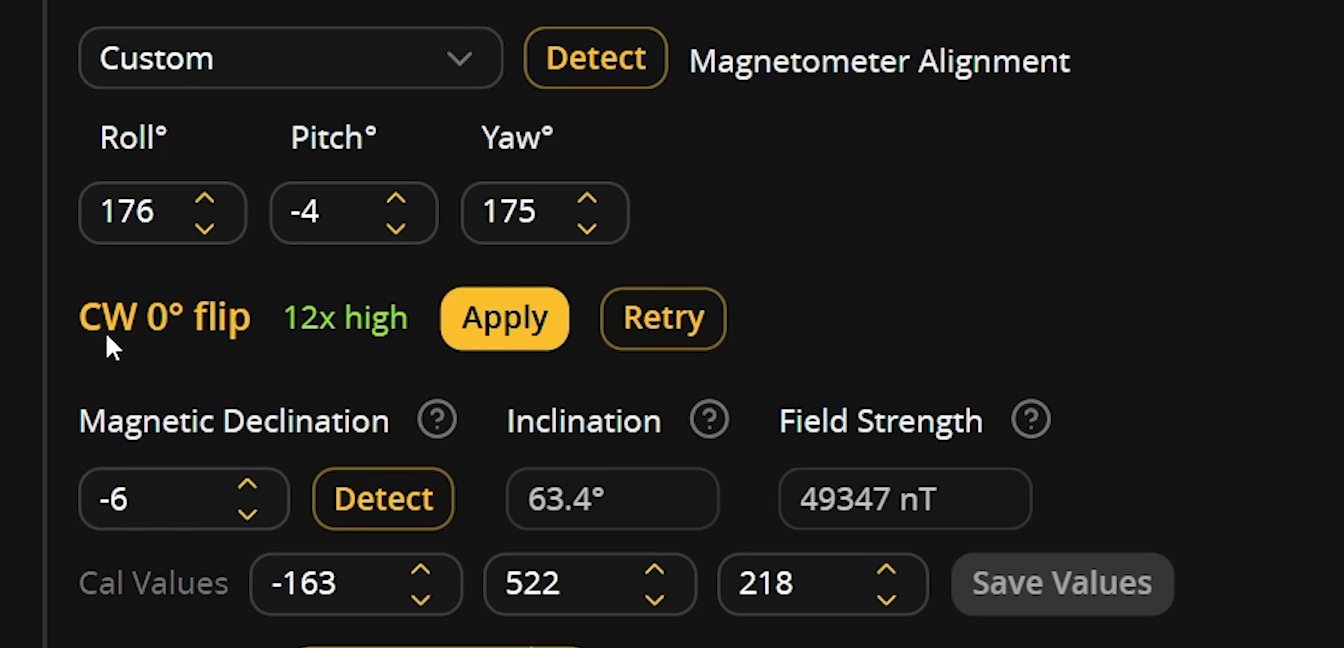
When that’s done, it guesses the orientation. Mine came out CW 0° flip. You can see the confidence is 12x, which is high. A lot of times when I’ve done this before, the confidence was really low, because I’m in my office with all kinds of electronics and magnetic fields. You want to do this somewhere without external magnetic fields if at all possible.
The other thing: I showed you this first because it’s at the top of the screen, but before you do it, you really want to calibrate your compass. I think the reason it worked even in a noisy environment is that my compass was correctly calibrated. When I tried it without the compass calibrated, I could not get the confidence high. Interestingly, it gave me the same CW 0° flip, so maybe it was right all along. But the calibration is where I think the real improvement is.
What is calibration?
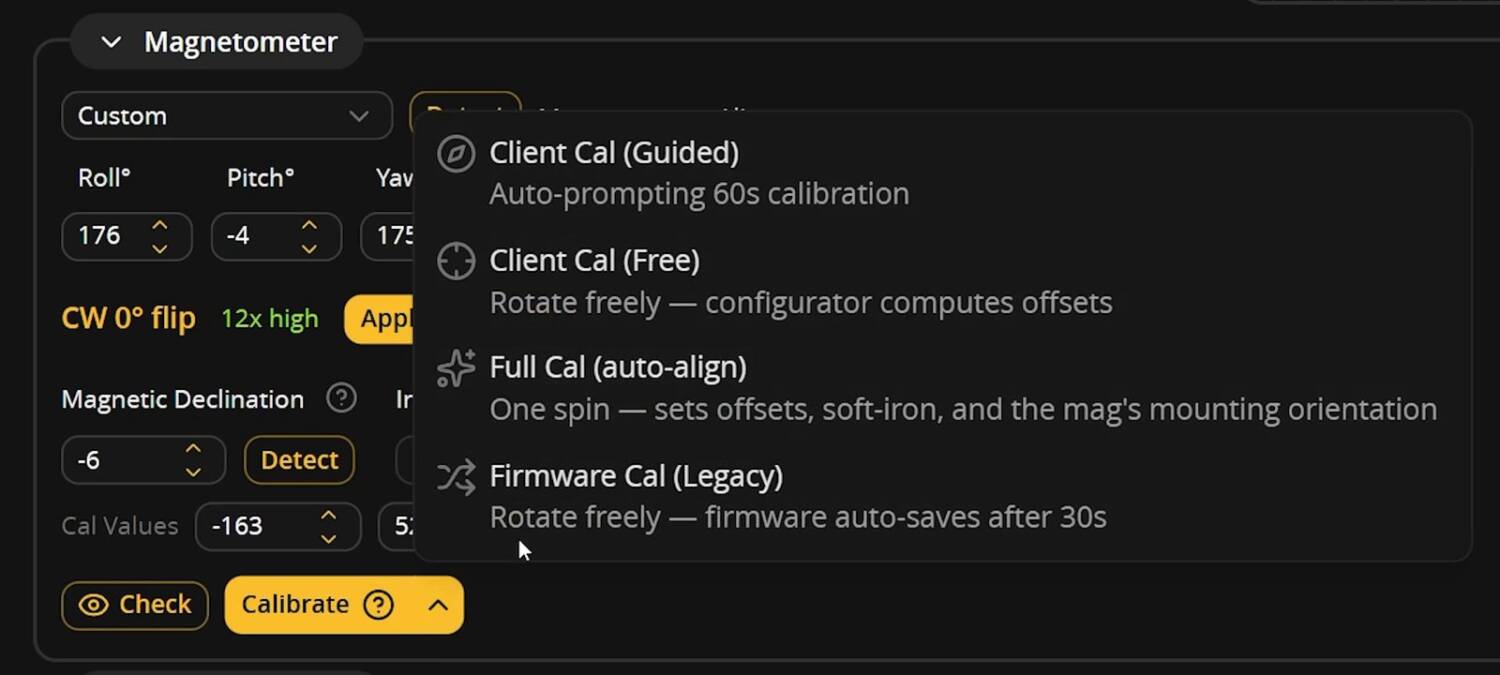
Click Calibrate and there are several options. One is Firmware Cal (Legacy), where you just rotate the drone 360° on every axis. You hold the drone and rotate it 360° on the yaw axis, 360° on the roll axis and 360° on the pitch axis, and keep doing that for 30 seconds.
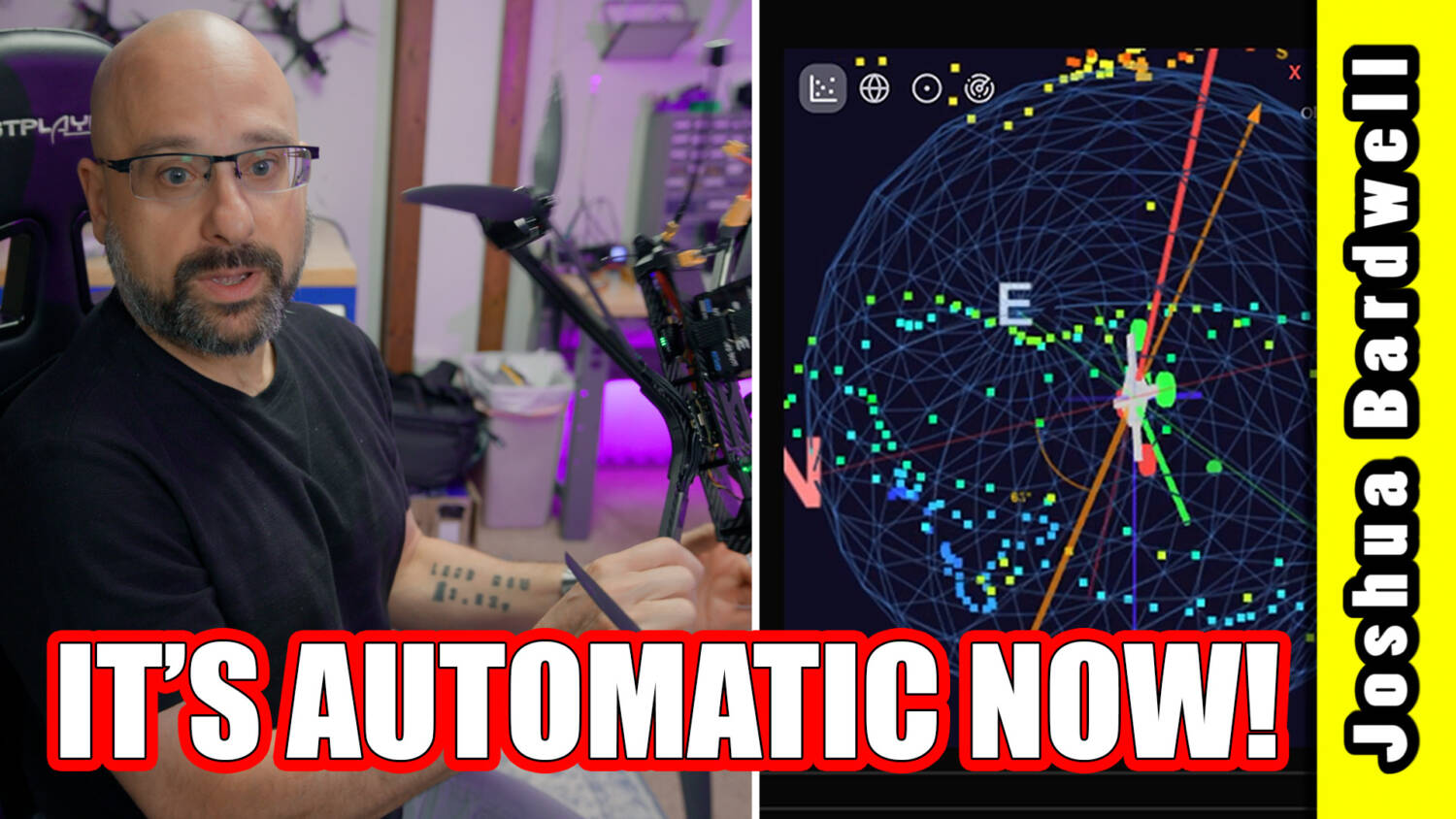
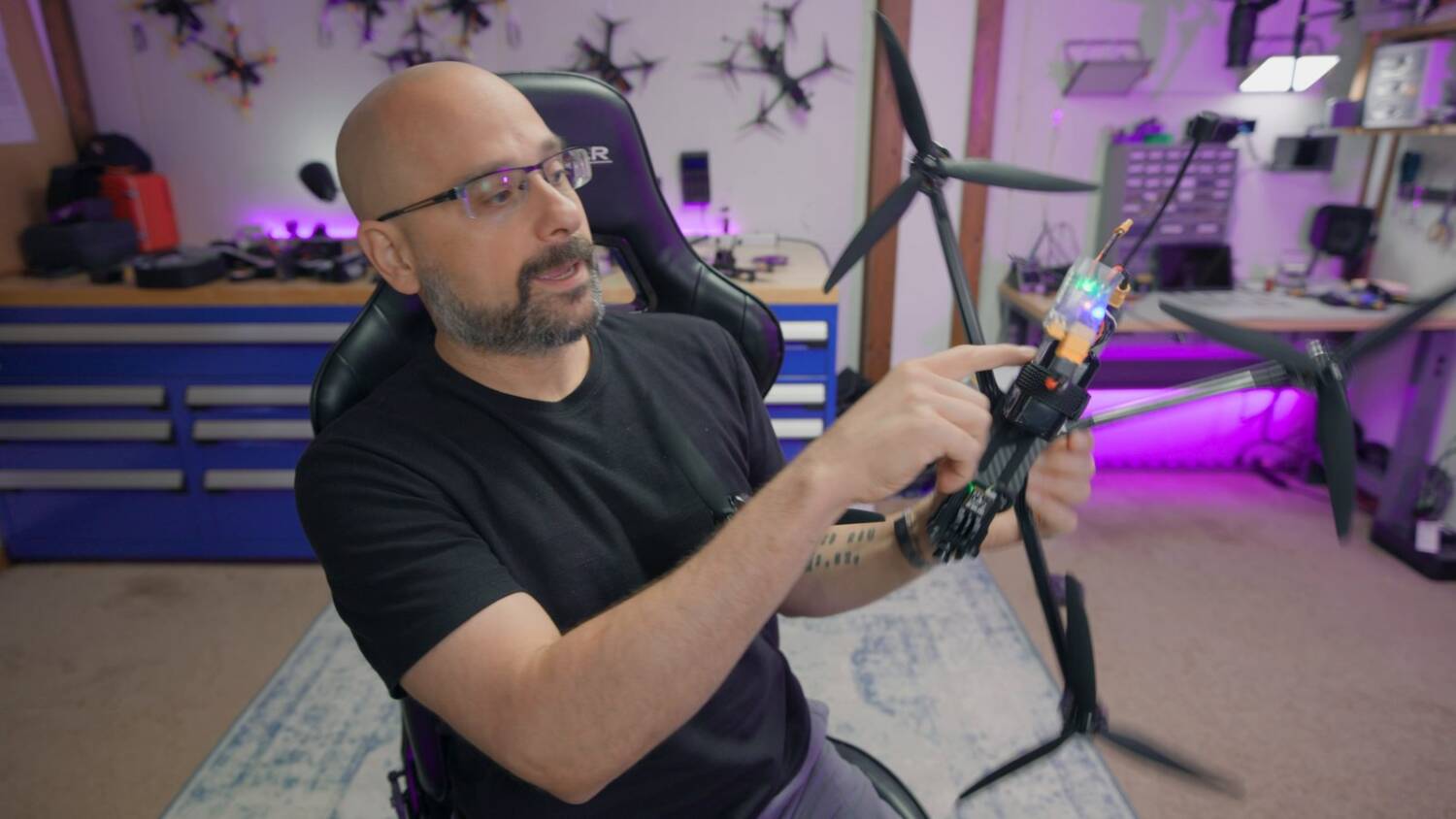
What the drone is doing is calculating the magnetic fields that rotate with the drone, and subtracting them from the magnetic fields that don’t rotate: in other words, the Earth’s magnetic field. This is really important. Look where the battery is on this drone: it’s a terrible place for it if you have a GPS and compass out the back, because current is flowing in those cells, the magnetic fields are there, and they screw up your compass like crazy. But if you can at least calibrate some of that out, you can make the compass work.
Auto-calibrate (even better!)
Instead of the legacy calibration, I think you should do Full Cal (auto-align). It not only calibrates the compass, it also detects the alignment at the same time. And instead of a standard alignment, which only goes in 90° steps, it finds the exact alignment. Look at mine: Roll 176, Pitch -4, Yaw 175. My compass isn’t mounted perfectly flat, and it isn’t mounted perfectly 180° to the front. The automatic alignment takes the exact alignment of your compass into account. That’s pretty cool.
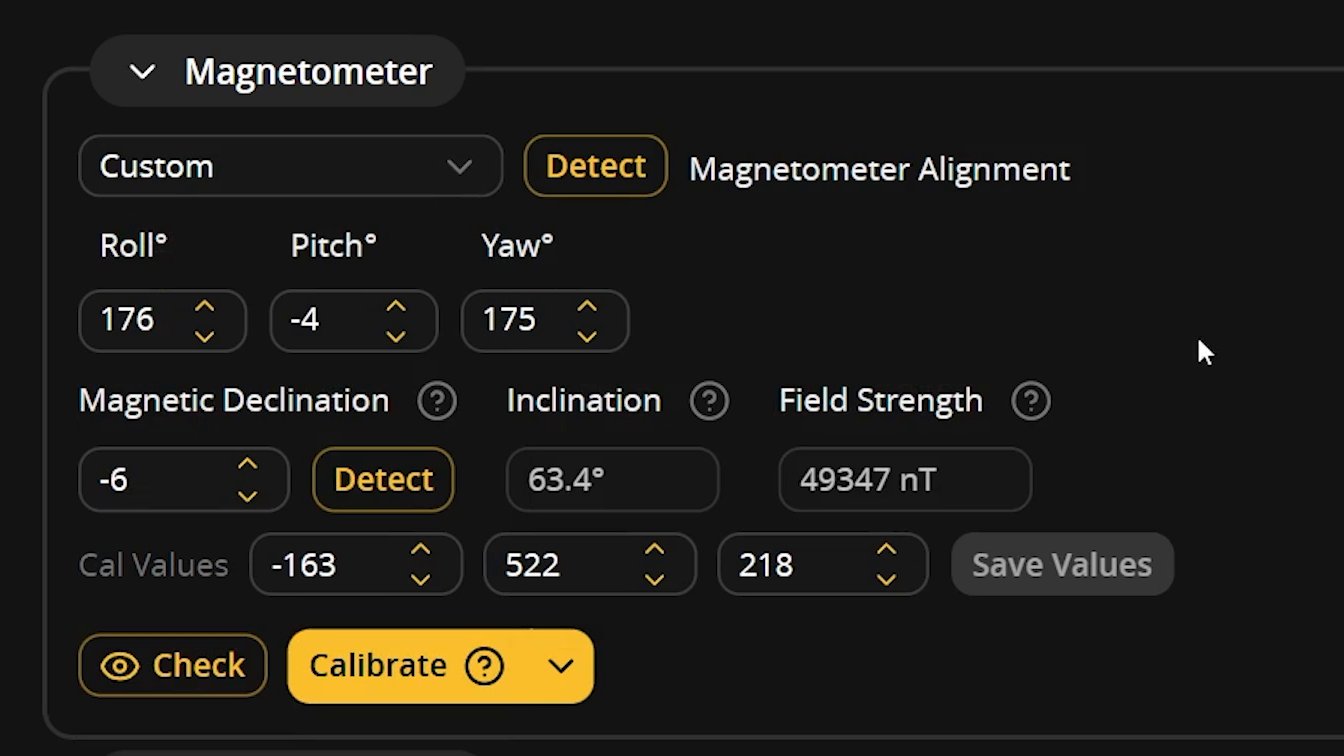
Open the Calibrate menu and choose Full Cal (auto-align). (Oh, I love a graphic.) Then follow the instructions on screen:
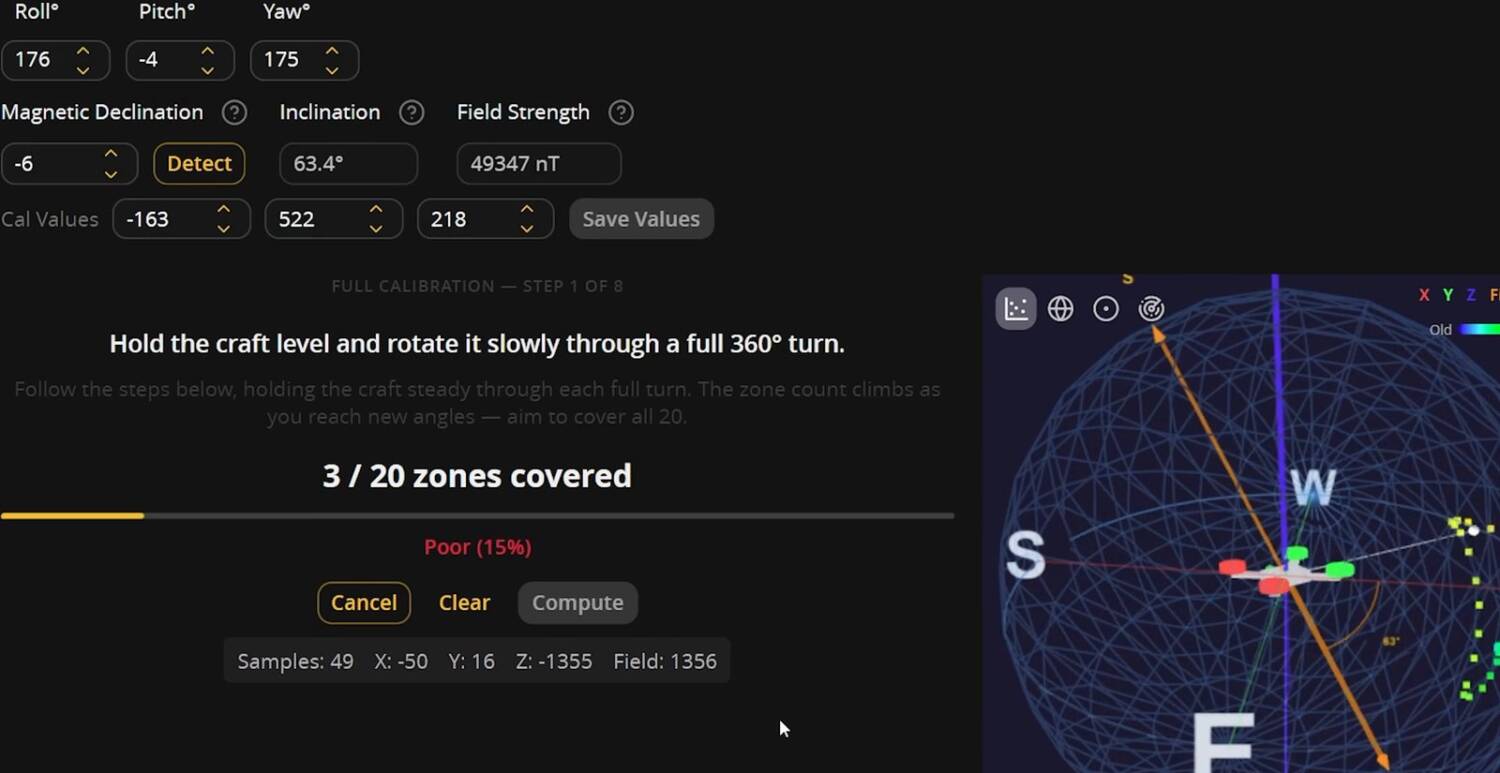
- Hold the craft level and rotate it slowly through a full 360° turn.
- Turn it upside down and rotate it through another full 360°.
- Put the nose straight up and rotate it.
- Put the nose straight down and rotate it a full turn.
- Keep going through the rest of the orientations, a side at a time, rotating it each time, until 20 of 20 zones are covered.
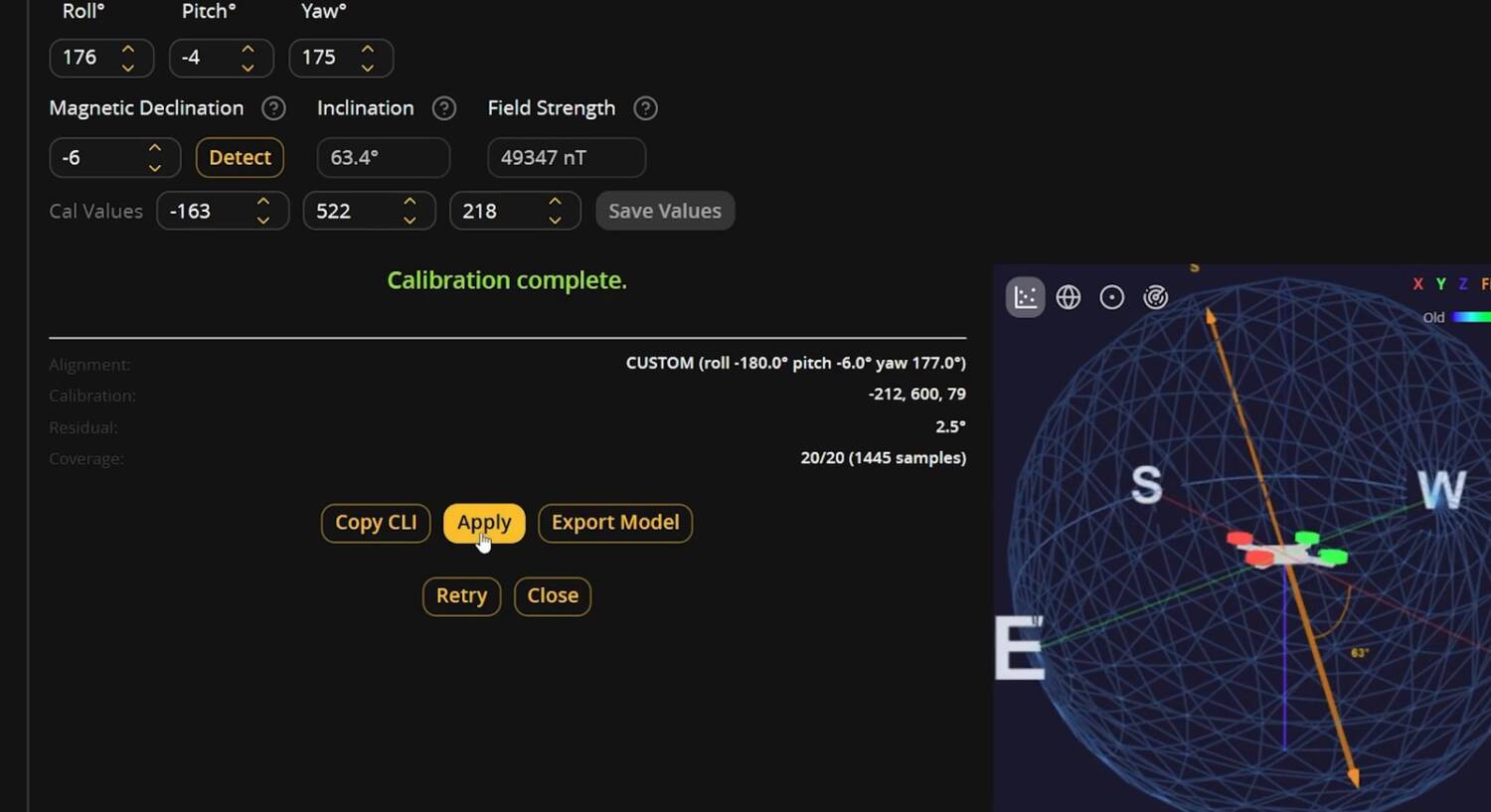
- Hit Compute.
- Hit Apply.
This is really hard to do with a USB cable attached. It kept getting snagged. Betaflight has a new wireless feature that would be super cool here. I didn’t finish it on camera, because it’s a pain in the ass and I’d already done it.
As you go, the globe on screen fills up with data points. If you have any zones missing, go back and get that side again. I don’t think it actually matters whether you keep up with the timing. I think it’s just walking you through the process of filling out the globe, so if you miss one or get behind, it doesn’t really matter. When you hit Compute, it calculates the calibration and the orientation.
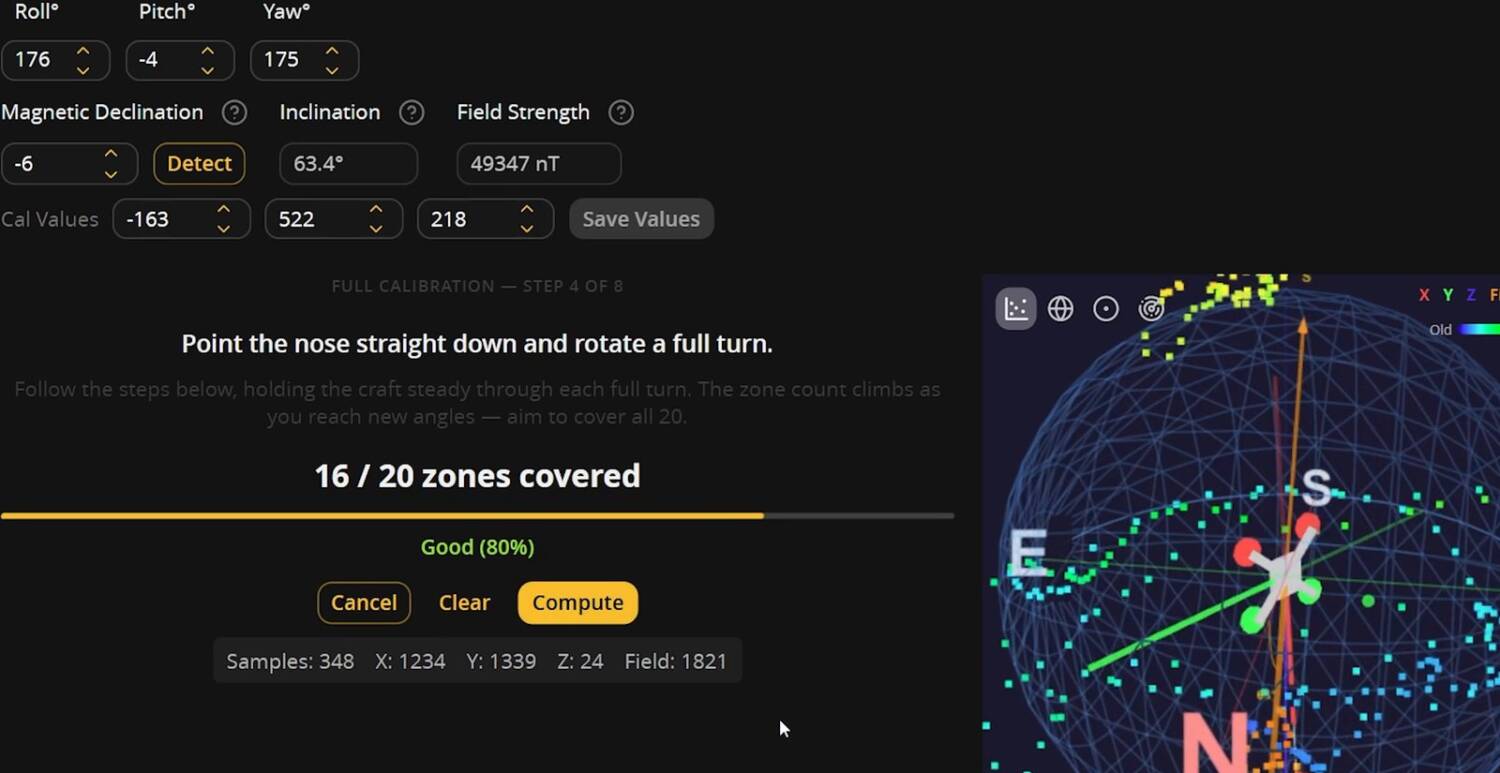
Instead of Apply, you can also copy the CLI and save it for later. There’s an Export Model button, too. I’m not even sure what that does. I didn’t save this one, because it was a terrible calibration: I was inside, near all the computers and magnetic fields. But when you’re done, you’ll have a custom orientation and a custom calibration.
This is a life saver
And I found that it works. I’ve spent so many hours trying to figure this out. Here’s the thing: when you go into Position Hold and your drone starts toilet bowling, is it because your orientation is wrong, or because your compass calibration is bad? There’s basically no way to know. You look on the web, you ask ChatGPT, you think your orientation is right, and you could be chasing your tail trying to solve the wrong problem. You will never get a good Position Hold if your orientation isn’t right, and it’s hard to know whether you got a good calibration or not. Now Betaflight just solves all that for you.
I’ve only tried this on one drone, and I was so excited about it that I made a video to tell you about it. It worked great for me. It’s a new feature, so if there are bugs, or it doesn’t work in some cases, we’ll start gathering data about that.
This isn’t the only thing that’s new in Betaflight 2026. They’ve added a bunch of new stuff that’s pretty freaking awesome. Some of it they added after the release, and I’ve had to make catch-up videos. That’s okay. Keep releasing features this good, and I don’t mind making catch-up videos. Another feature solves a problem a lot of us have. It’s not quite as acute a problem as compass orientation, but it’s still a big deal: Betaflight’s FC Alignment Wizard. And for the full rundown of the new version, see my Betaflight 2026.6 release overview.
GPS modules for your build are on the Other Accessories page of the Ultimate FPV Shopping List.
The full tutorial, with the calibration on screen, is on my YouTube channel.